WITHSECURE™ CLOUD PROTECTION FOR SALESFORCE
Salesforce SDO Setup Guide
Welcome to the Cloud Protection for Salesforce SDO site! Here, you can find simple guides to demonstrate our product and simulate cyber attacks, showcasing the strength of our Cloud Protection for Salesforce. Enjoy exploring and learning!
WithSecure Cloud Protection for Salesforce demo materials
Looking for the latest product updates? See What’s new.
Quick Installation Guide
This document outlines the basic setup steps to get Cloud Protection for Salesforce in demo-ready form in your SDO. Reach out to Customer Success with any questions. Estimated time: 10 minutes.
Step 1: Install the AppExchange package
Install the AppExchange package
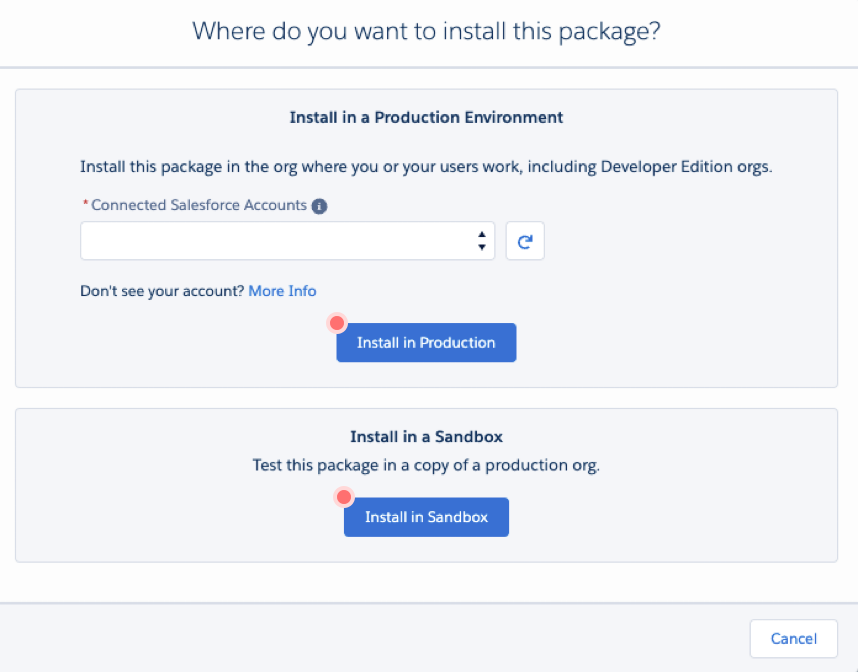
- Depending on whether you are installing the application to your production Salesforce org or Sandbox, choose Install in production or Install in Sandbox.
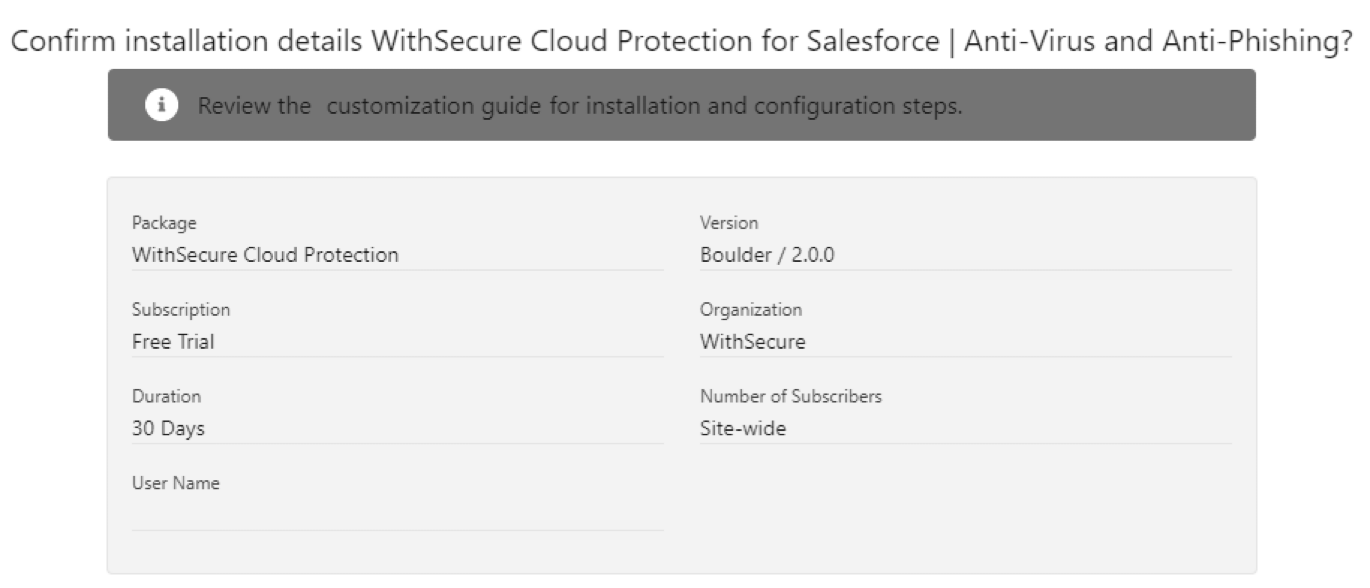
- Check the installation details.
- Select I have read and agree to the terms and conditions and then select Confirm and Install.
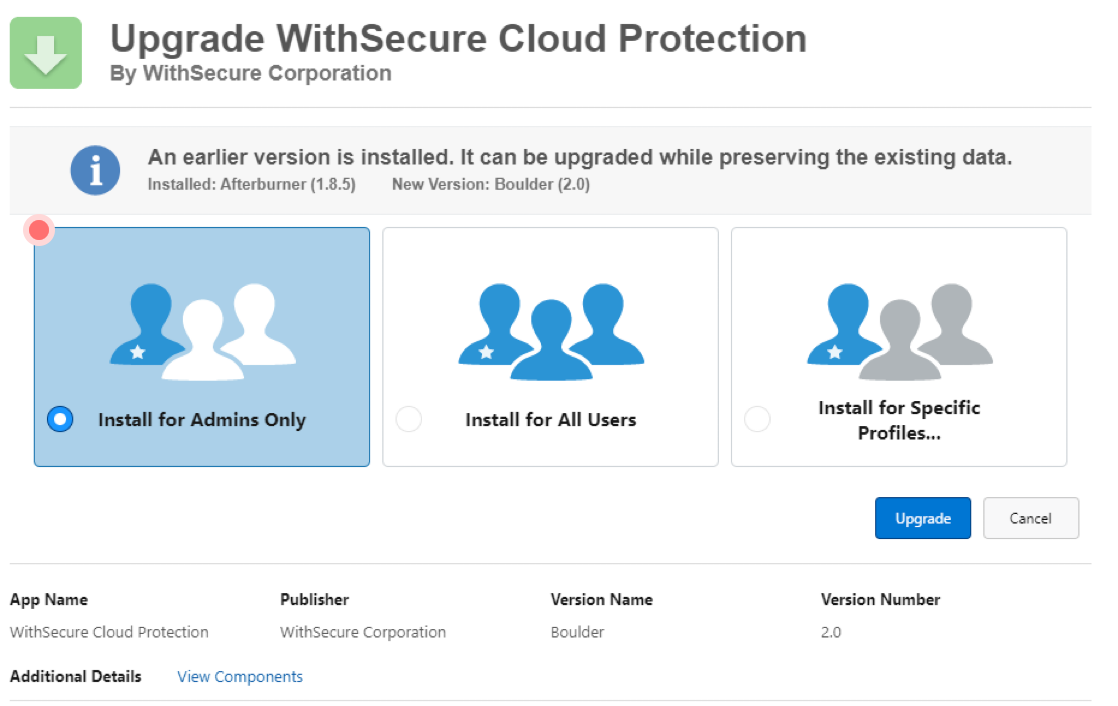
- Select Install for Admins Only and then select Install.
- Select Yes, grant access to these third-party web sites to allow the application to connect to the WithSecure Security Cloud services. Then, select Continue.
- Wait until the installation is complete.
Step 2: Assign permission sets and licenses
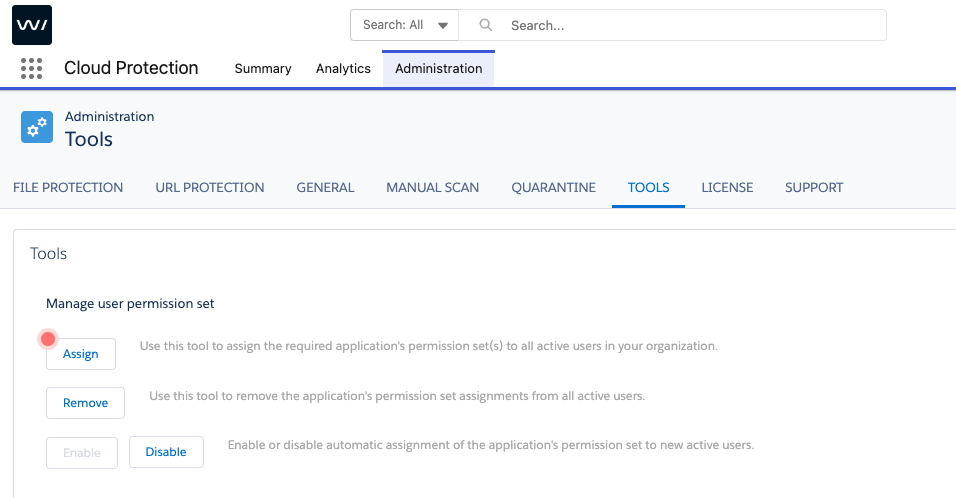
- Open the Cloud Protection App from AppLauncher. Navigate to the Administration tab → Tools.
- Click Assign under Manage user permission set.
- Click Enable next to “Enable or disable automatic assignment of the application’s permission set to new active users”.
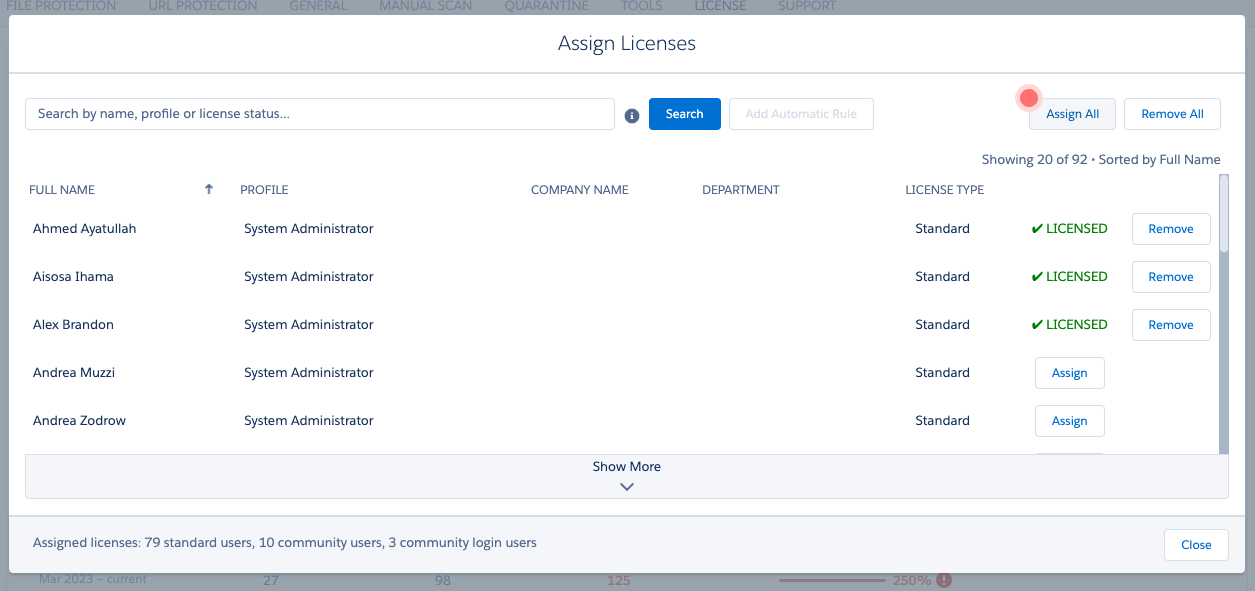
- Under the License tab, set License mode to All Users. Next to that, click Select Licensed users… and then click Assign All.
Step 3: Create connected app permission set and assign
- Navigate to Administration > Users > Permission Sets.
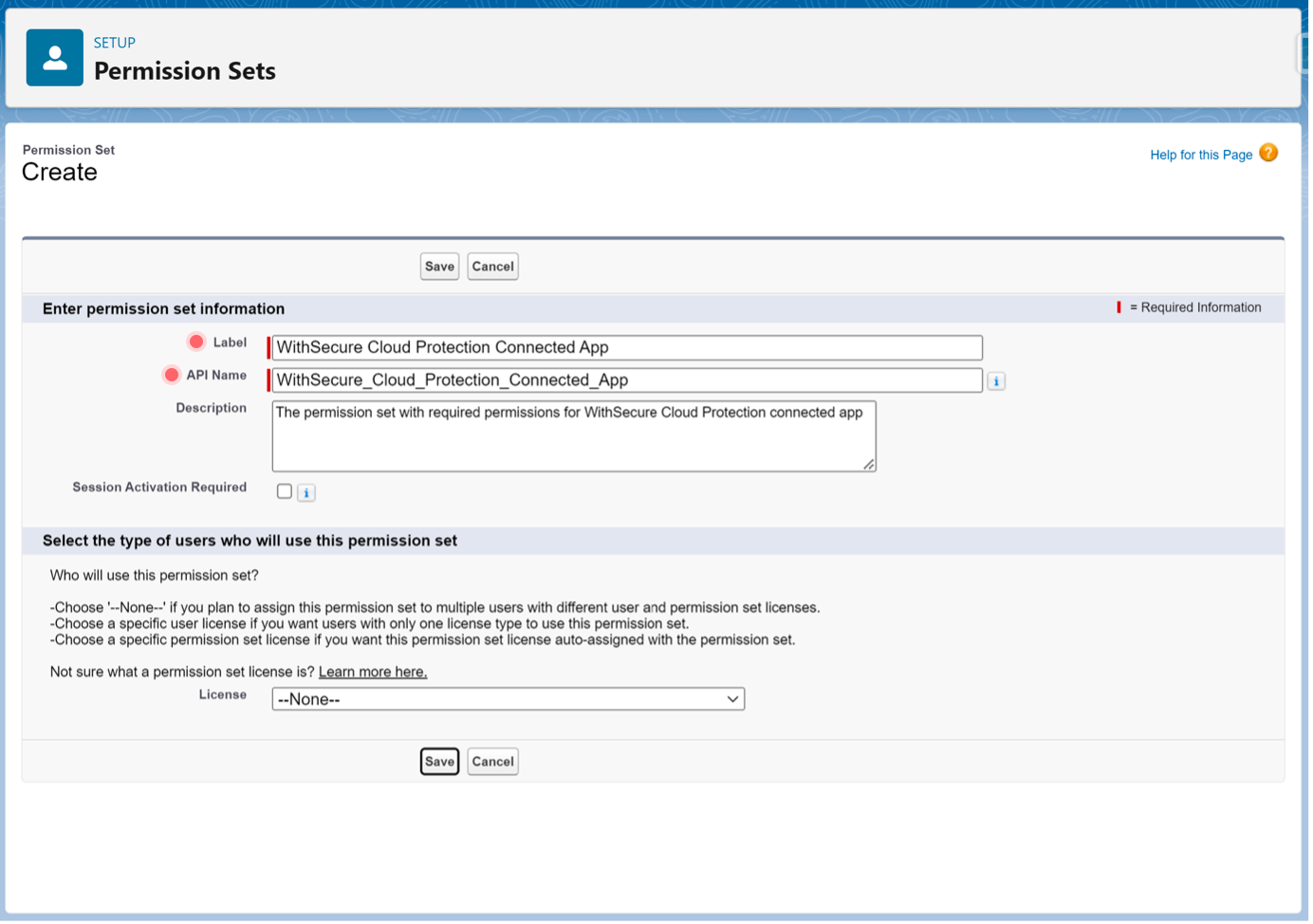
- Click New to create a new permission set.
- Enter the Label and API name for the new permission set. For example, the label can be “WithSecure Cloud Protection Connected App” with the auto-generated API name WithSecure_Cloud_Protection_Connected_App.
- Click Save.
- On the page with the newly created permission set, find and click System Permissions.
- On the page with System Permissions, click Edit.
- In the System section, find and enable the API Enabled and View All Data checkboxes.
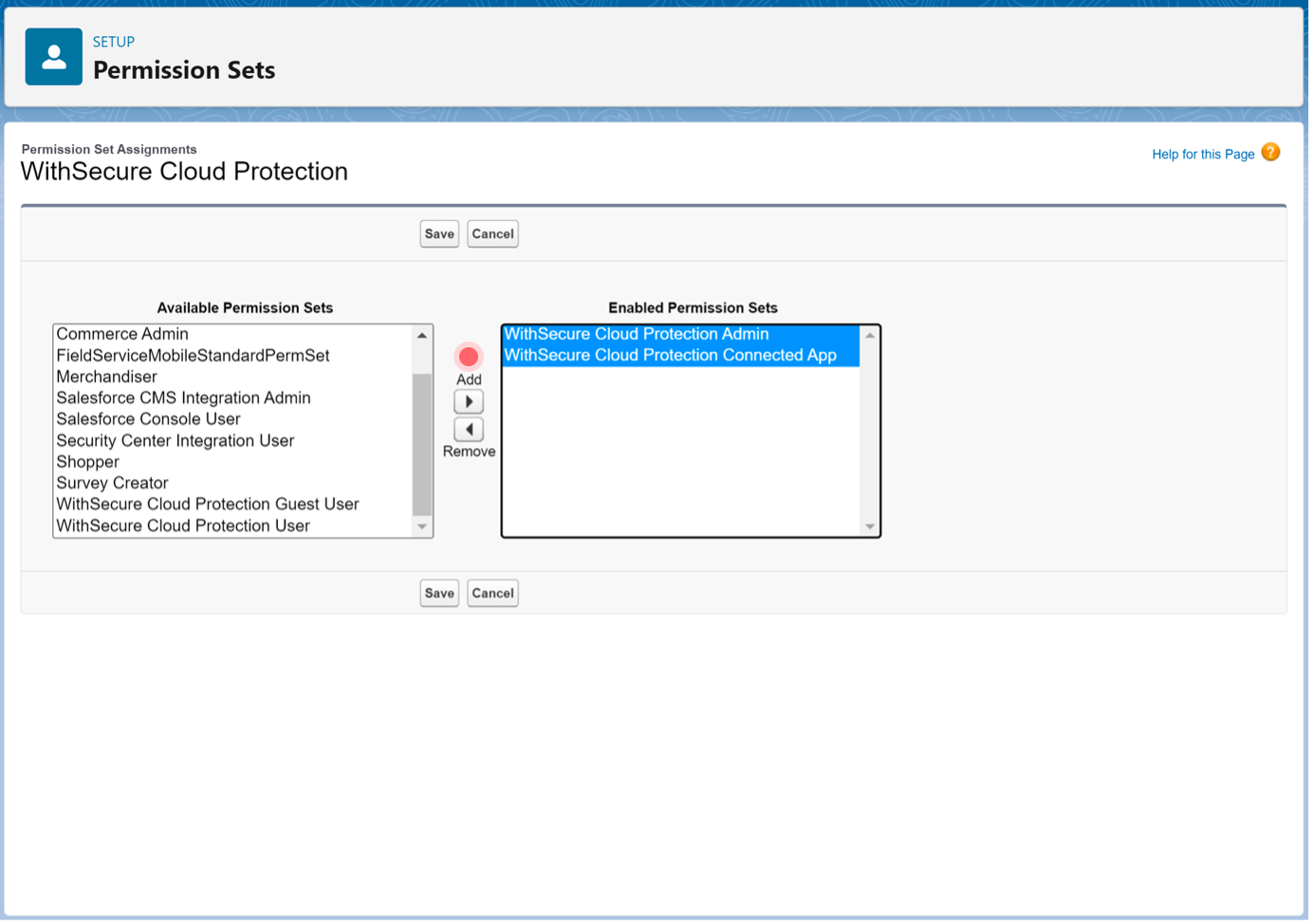
- Assign the Permission Set: navigate to your User record and assign the newly created permission set to yourself.
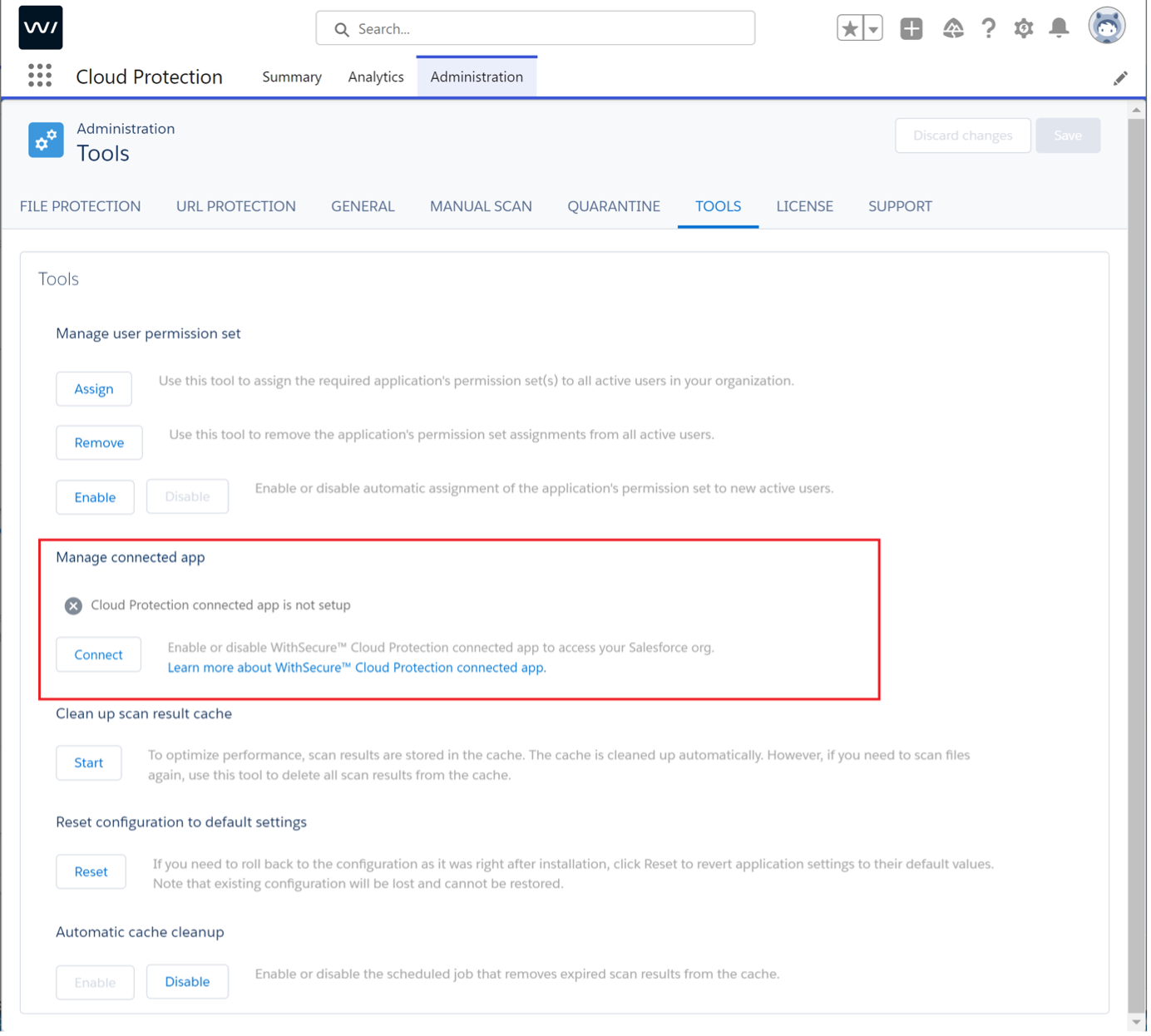
Step 4: Enable connected app
- Open WithSecure’s Cloud Protection app.
- Navigate to Administration > Tools.
- Click Connect under Manage connected app.
- Click Connect when “Connect WithSecure™ Cloud Protection” is shown.
- When the Allow Access dialog is shown, verify the requested permissions and click Allow.
- WithSecure Cloud Protection for Salesforce will shortly connect to your Salesforce org. You can click Close window.
- Note: once the connection is successfully established, the status is reflected on the Tools page. Your admin user can always see the status of the connection there.
Step 5: Configure file and URL protection settings
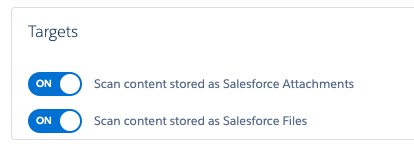
- Under Administration → File Protection turn on scanning for Salesforce Attachments and Salesforce Files.
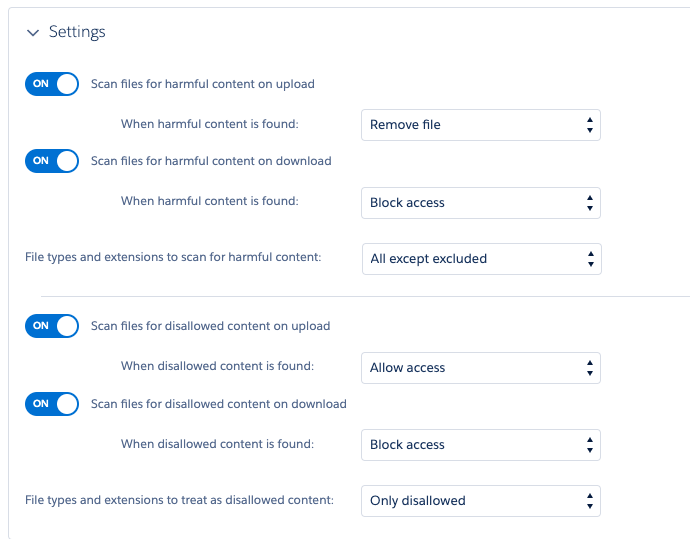
- Under Settings turn on scanning for upload and download for harmful content and disallowed content.
- Optional: turn on notifications for harmful and disallowed content detection under the Notifications tab.
- Under Administration → URL Protection turn on all URL scanning for standard objects. Confirm all objects are turned on in the “Configure locations…” link on the right-hand side, then click Save.
- Optional: turn on reputation checks for URLs under Settings. Turn on notifications for URL alerts under the Notifications tab.

Step 6: Prepare malicious file and URL for demo
You’ll need a “malicious” file and URL to upload during your demo. You can use the following test material:
- URL: unsafe.fstestdomain.com
- Fake malicious file for testing: ExampleScanboxVirusTest.zip (Dropbox)
- ZIP file password: infected
*Note that demo orgs default to expire 30 days after installation; please reach out if you need an extension.
Documentation
WithSecure Cloud Protection for Salesforce Administrator’s Guide
WithSecure Cloud Protection for Salesforce Testing Guide
Prepare malicious file and URL for demo
- Configure Email-to-Case in your SDO.
- Follow the installation and setup instructions in the Quick Installation Guide.
- To show a malicious file or URL you can use the Attack Simulator for Email-to-Case:
- Open the Attack Simulator
- Username: Salesforce
- For the password contact Connor Casey
Demo script
This demo script is designed to give an overview of WithSecure’s Cloud Protection for Salesforce solution while leveraging existing Experience Cloud sites and users in the SDO. Feel free to modify the flow to include the solution in other customer demos or follow as-is to solely showcase our solution. Click here to view the demo script in Quip.
Click Path
Talk Track
Screenshot
Open the Attack Simulator and insert your email-to-case email address.
As an existing [Company Name] customer, Lauren can contact support via a few different channels, but she’s always on the go and finds email to be the easiest. Today she has an issue with a turbine she recently installed, so she’s going to reach out for support.
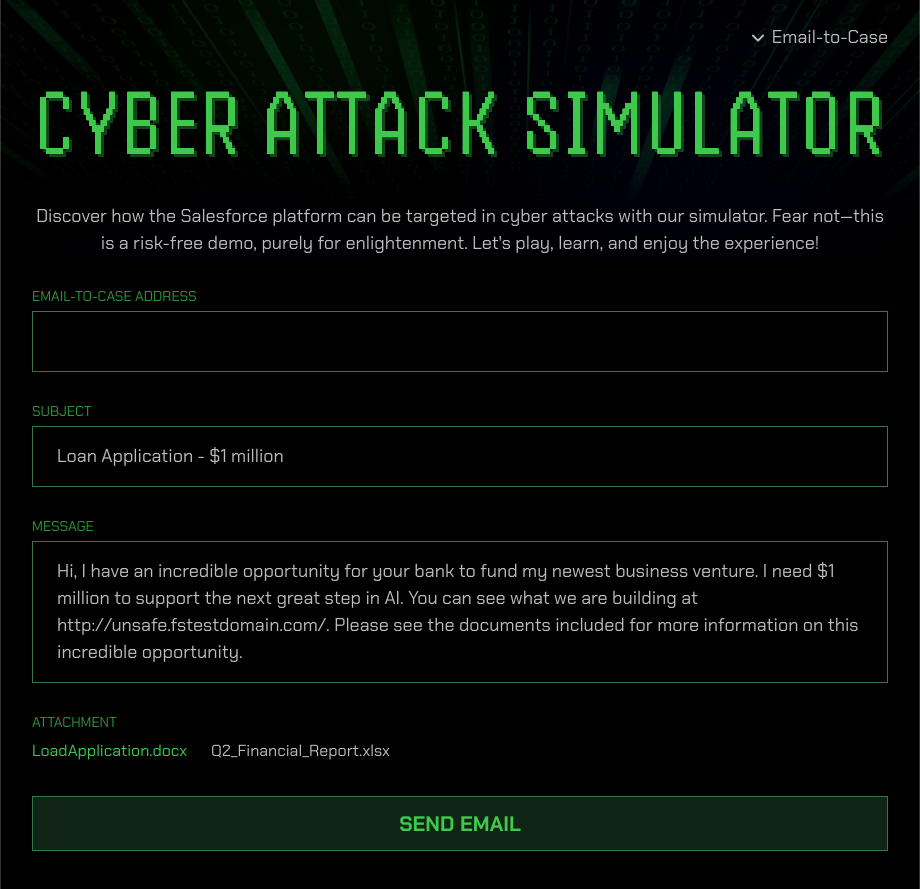
Attack Simulator
Subject: Turbine without Power
Description:
Hi there,
I installed a new turbine two weeks ago and it seems to have stopped producing power. I attached my warranty for your review and you can find a video of the generator here: http://unsafe.fstestdomain.com .
Let me know if you need any additional information, Lauren
Lauren adds some information about the issue she’s having with her turbine, including a link to a video of the turbine, and she attaches the product warranty.
She sends it off and goes about her day while she waits for a response from the support team.
View Case → make note of the Case Number
You can see here that I was able to successfully create a Case. Note that we really don’t want to change the experience for third parties uploading files and URLs, because we don’t want them to know if this is a protected or non-protected vector for attacks.
Note that this is Case #00001737.
Now let’s see what the experience is like for your internal Salesforce users.
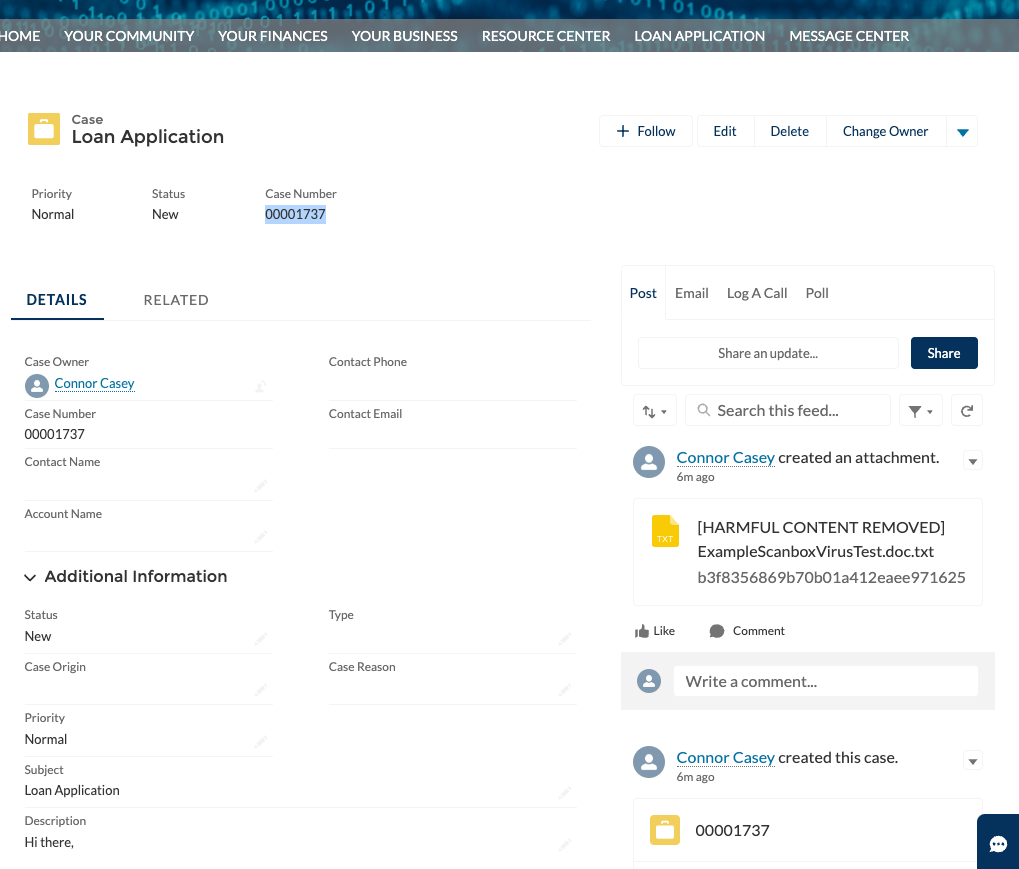
Customer/Partner Experience
Return to the service app
→ Service Console App
→ Open “All Cases” list view; sort by Date/Time Opened
→ Open the Case you just created
Within Service Cloud I can see a list of all cases; some of these might originate from Email-to-Case, some might originate from Experience Cloud. Either way all Cases end up here in Salesforce.
Here’s the Case Lauren just created regarding her turbine.
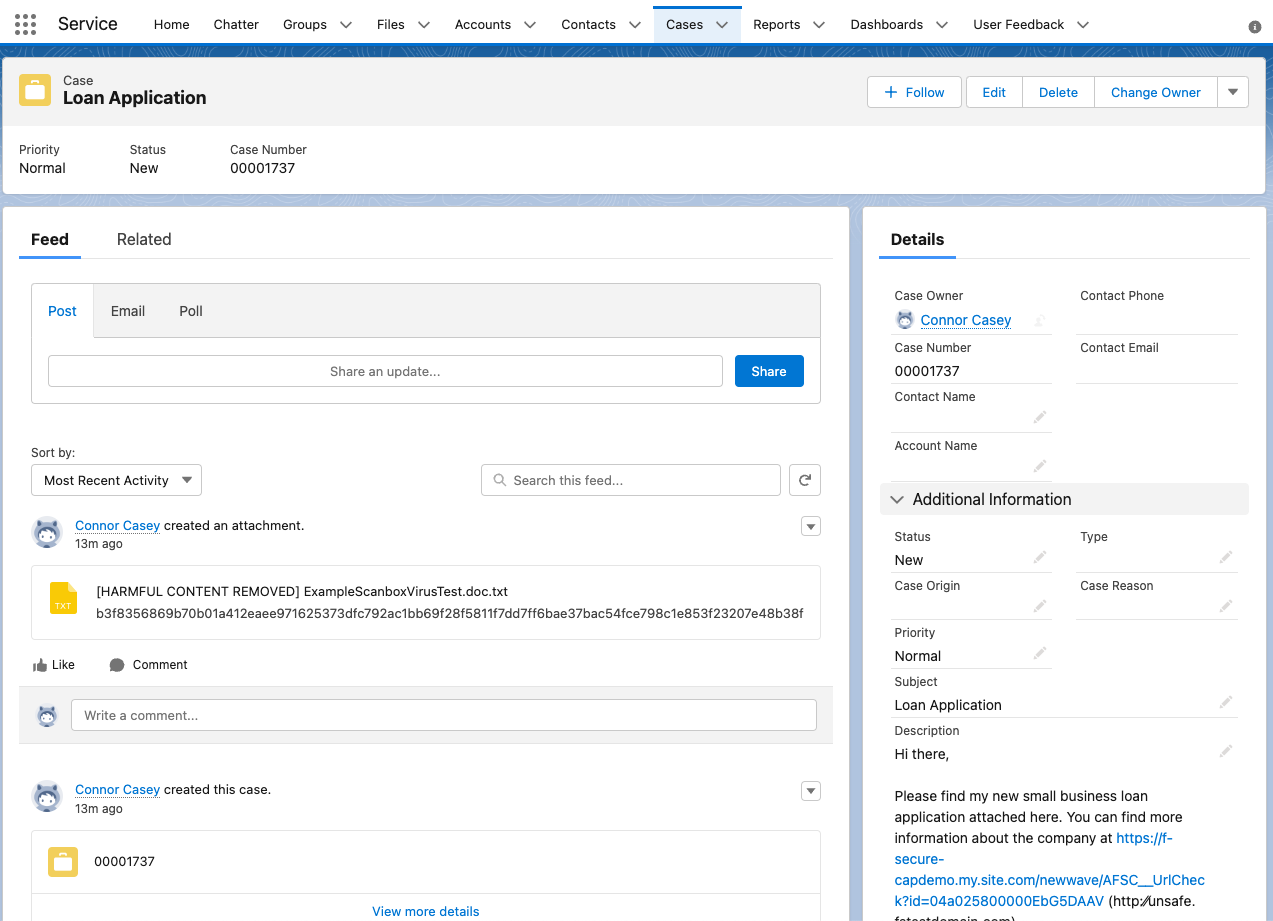
Explain file scanning and the internal user’s experience.
The first thing I want to call out is that WithSecure’s Security Cloud has already processed the file and removed it according to your company’s policy. Almost all files are processed in less than 60 seconds.
It’s best practice to let an agent know that there was harmful content found, so we replace all files with a .txt file, where you can customize the messaging that appears when an agent clicks on the file. This way if a customer or partner is referencing an attachment, there’s no confusion for the internal user.
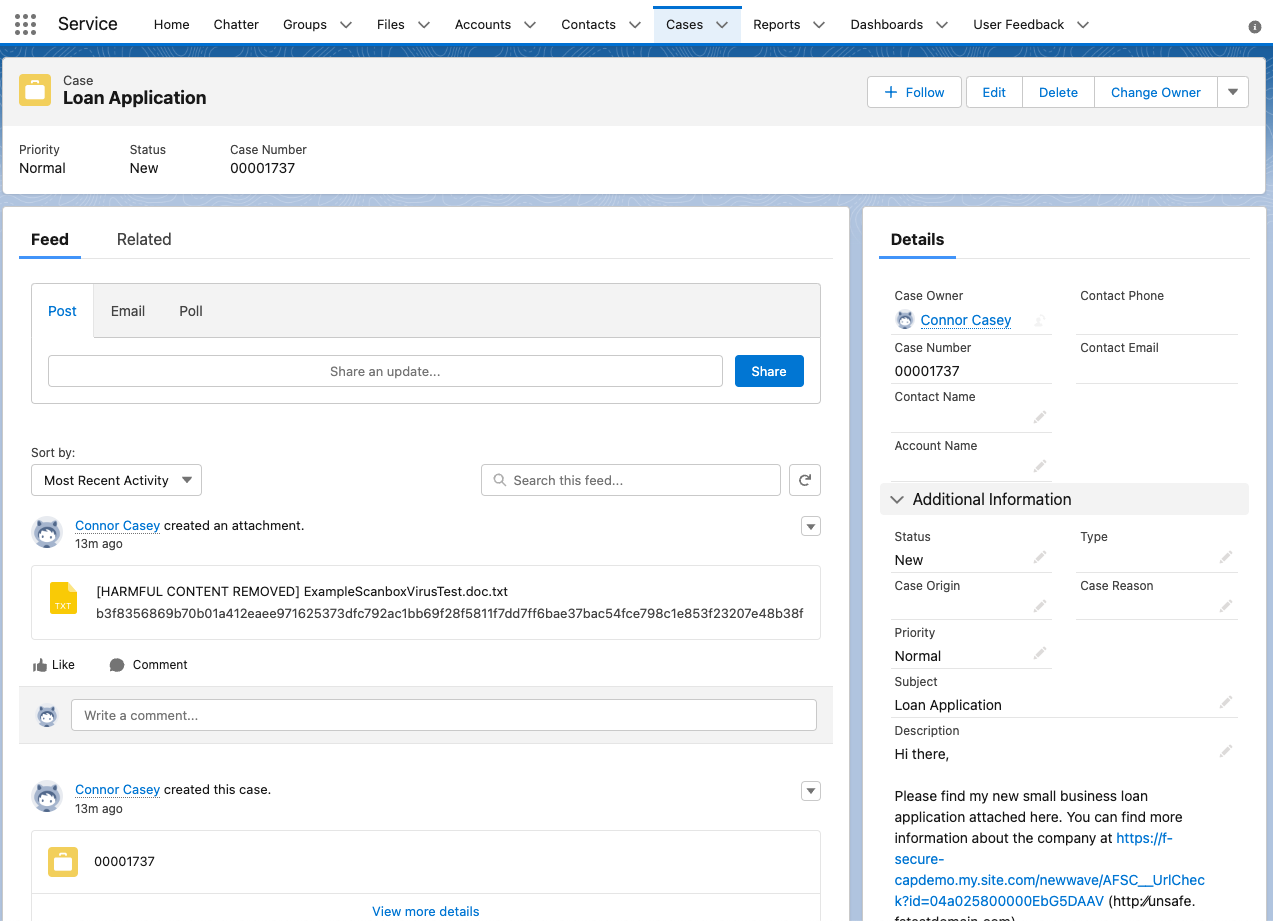
Click on the URL in the Case description field on the right-hand side.
Explain URL scanning and the internal user’s experience.
Next, notice how we replaced the URL the customer included. WithSecure replaces all URLs with Click Time Protection links, whether or not they’re malicious. That’s because websites can change and redirect to different sites after certain periods of time, so it’s important to scan URLs each time a Salesforce user clicks on them.
We show your internal user the original link in parentheses, but even that link has been slightly reformatted to prevent your users from accessing it accidentally.
When users click on the link they’ll see a message noting that the harmful website has been blocked. You can of course customize this messaging as well if there are additional actions you want internal users to take.
Before we take a look at the administrator and security team’s experience, are there any additional questions about your internal Salesforce users or external customers/partners experiences?
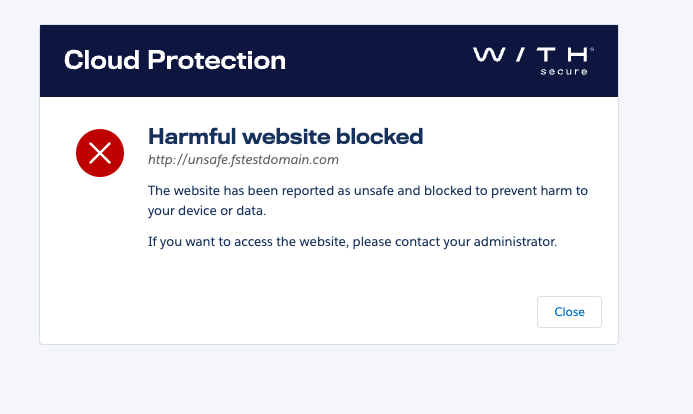
End of Agent Experience
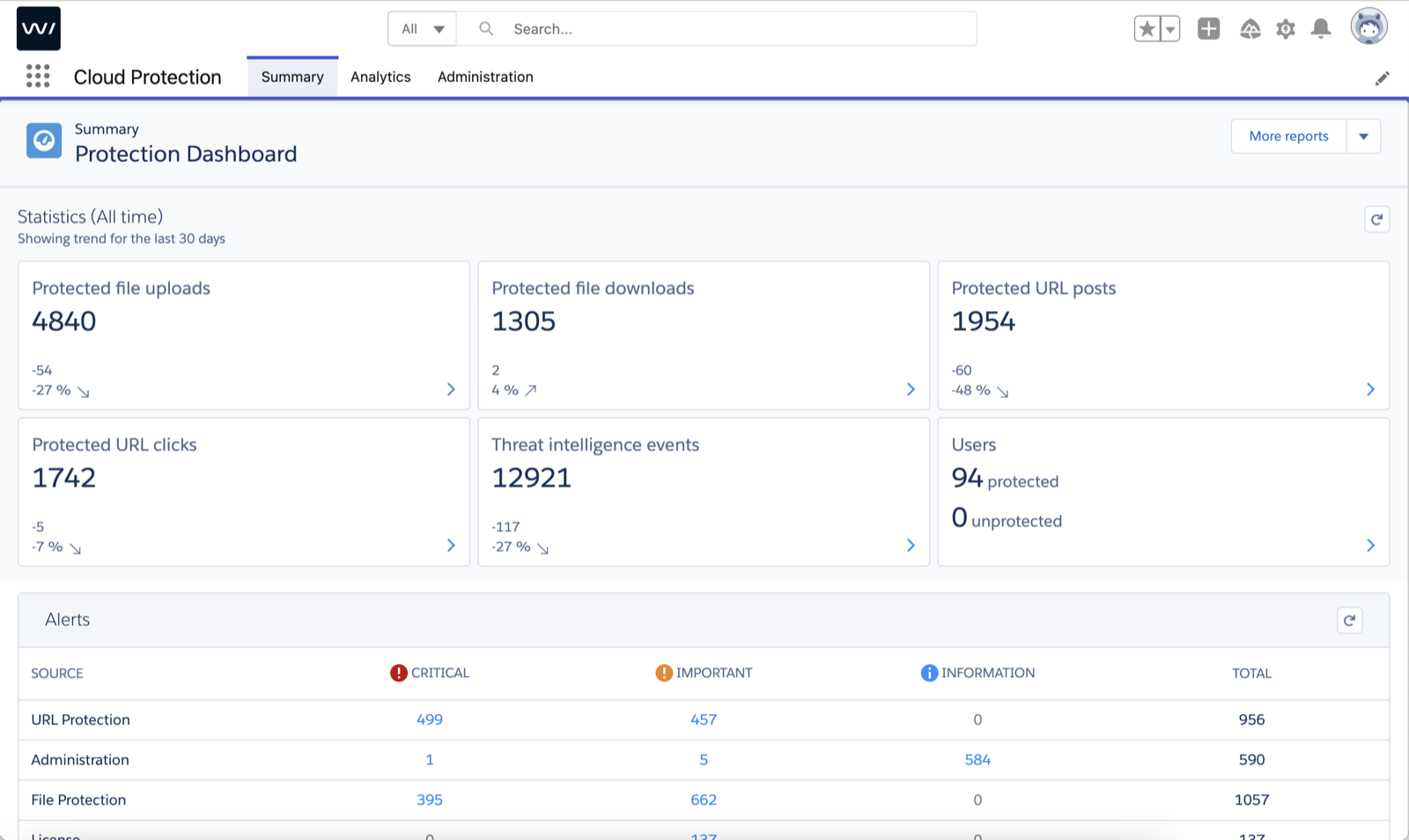
Navigate to App Launcher → Cloud Protection application
Because Cloud Protection for Salesforce is built on the Salesforce platform, you can configure and administer everything directly from your org. This is where your administrators and security team can see an overview of file and URL scans, monitor your org’s alerts and configure your CPSF settings.
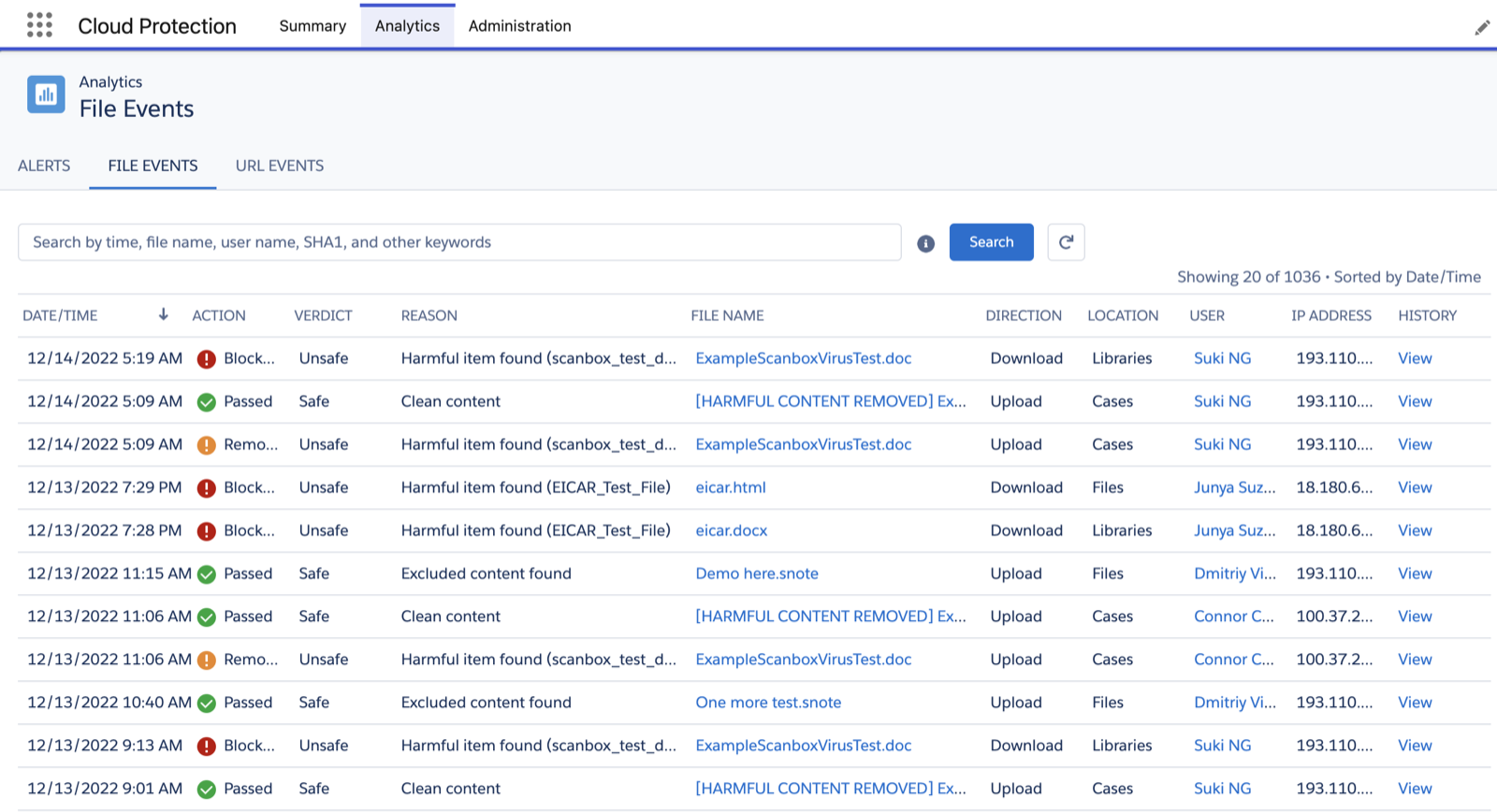
Analytics tab → File Events
Equally as important as scanning and removing malicious files is being able to analyze who uploaded them, who has tried to view them, and other important details like IP address.
When malicious files are removed an email alert can be sent to any group of users you’d like, and then they can come here to investigate further.
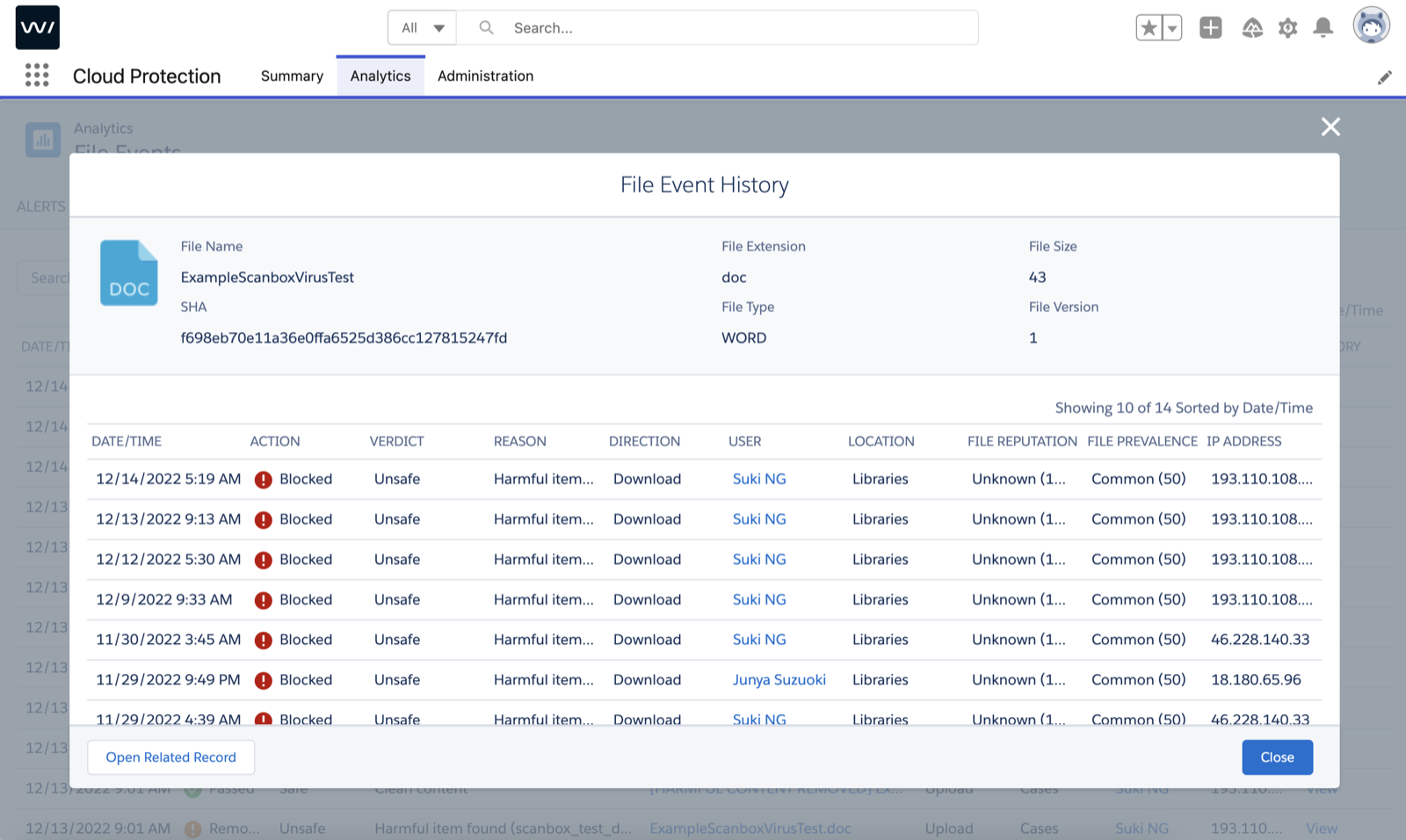
Click View for the file you uploaded
We can dig in and see analytics around this particular file like the file type, file size and the SHA1, which is essentially each file’s digital fingerprint.
Notice how we can also open the related record to help gather context and see other details around that Case.
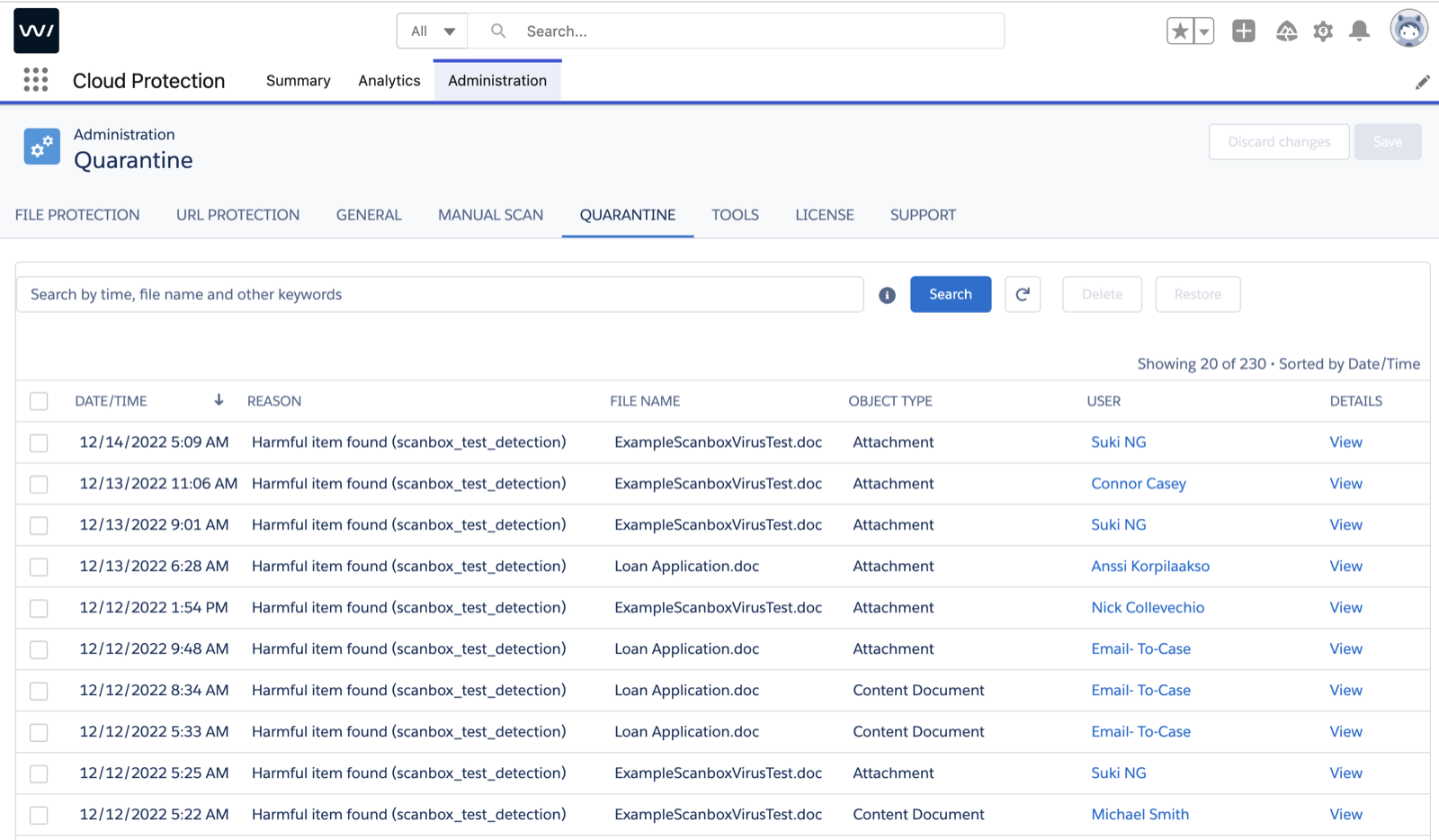
Administration tab → Quarantine tab
Removed files are stored in the Quarantine tab which can be found under Administration. It follows the same rules as your Salesforce recycle bin, which is set by default to keep deleted items for 15 days.
If you think there may have been a false positive you can select that file and click “Restore”, but note that it will go through our scanning engine again and likely be removed again. You can always copy the SHA1 and send it to our team to analyze it manually before restoring it.
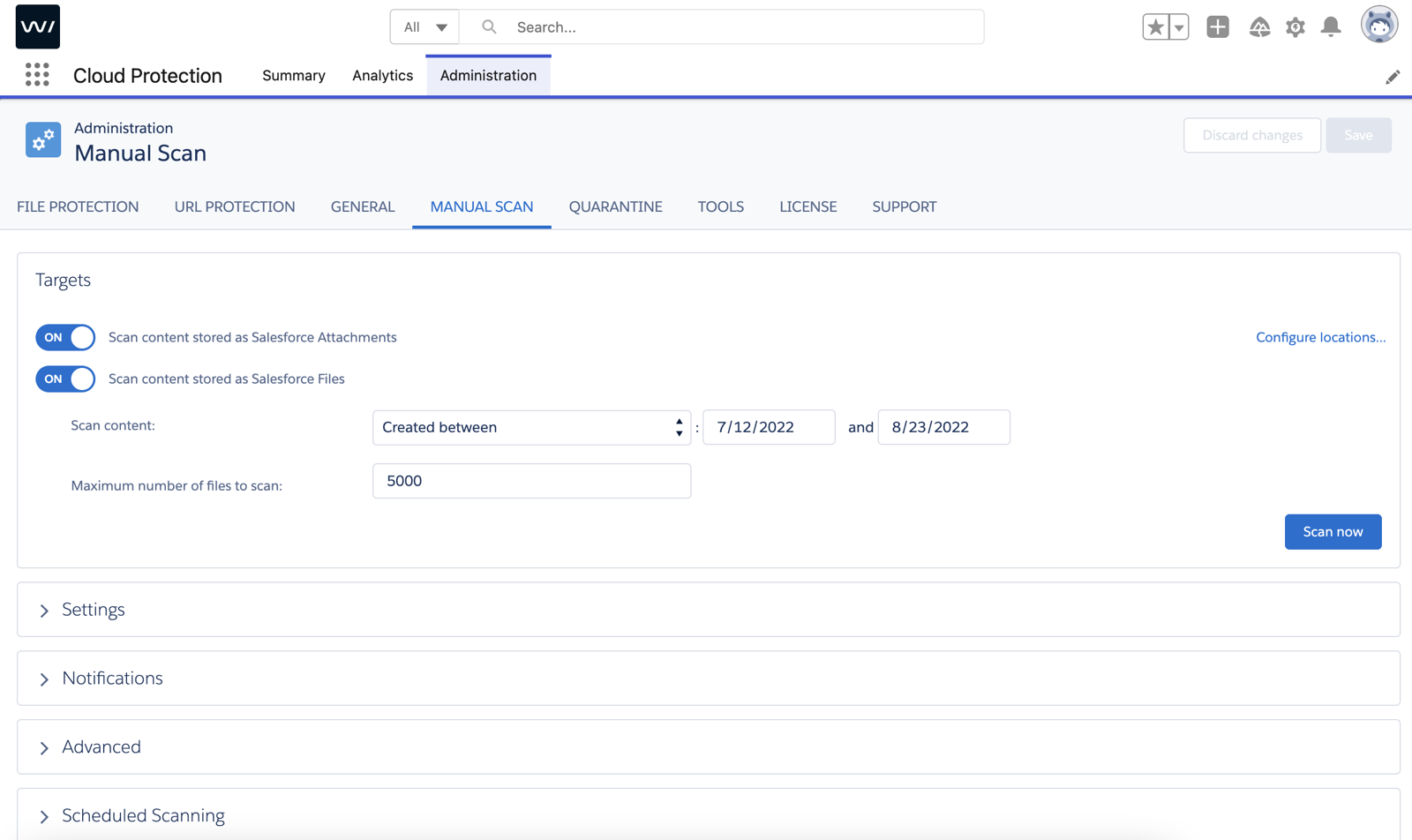
Manual Scan tab
If you want to scan existing files and attachments in your org when getting started, we can do a manual scan to make sure no content that’s already in your org is malicious.
Customers typically do this once when getting started and then have all new files and attachments scanned automatically.
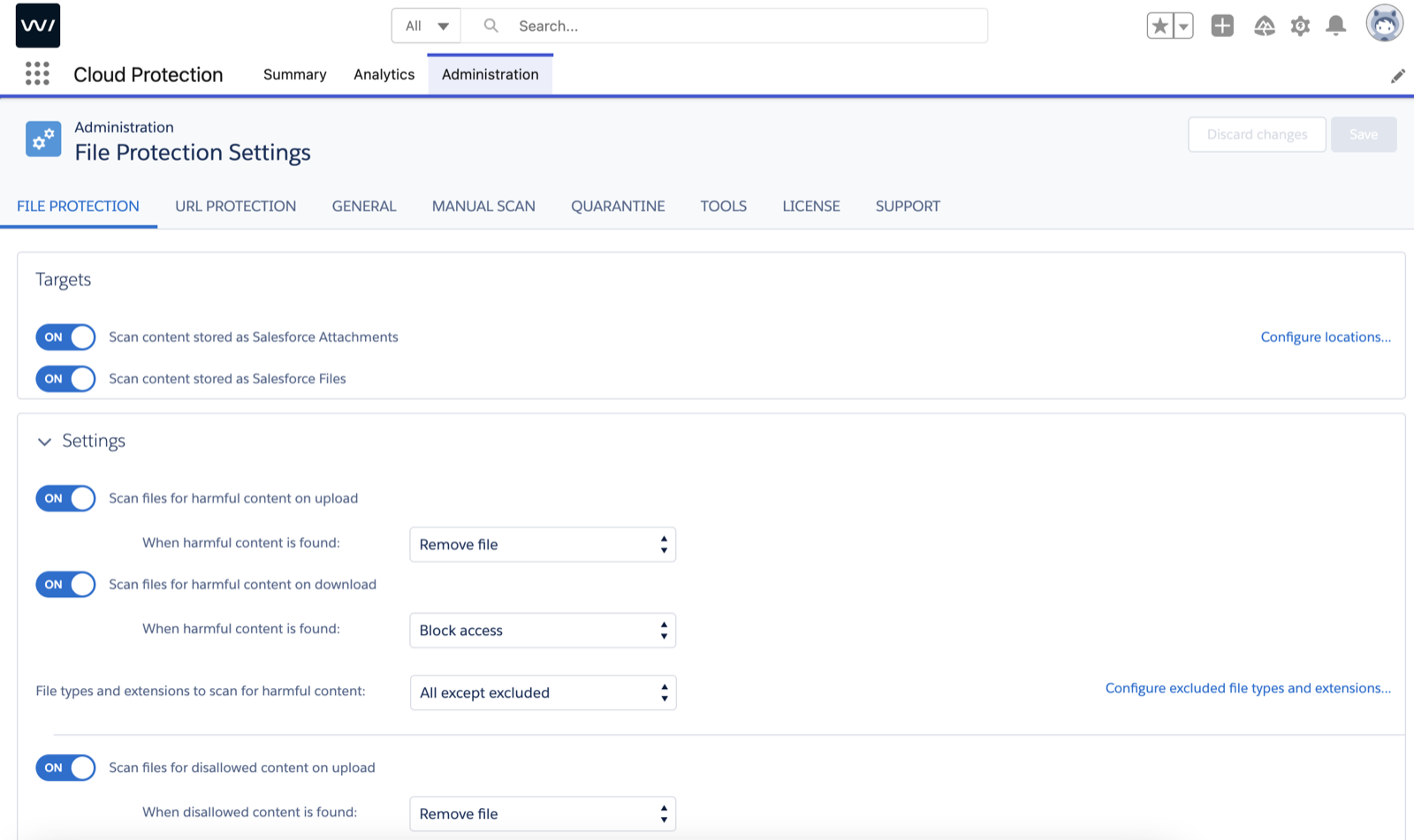
File Protection tab
In the File Protection tab you can configure the scanning behavior in your org.
You’re able to configure disallowed content, which means that certain file types could be blocked from being uploaded before they’re even sent to our security cloud for analysis.
This is also where you can configure what happens when harmful content is found, as well as what those different notifications look like.
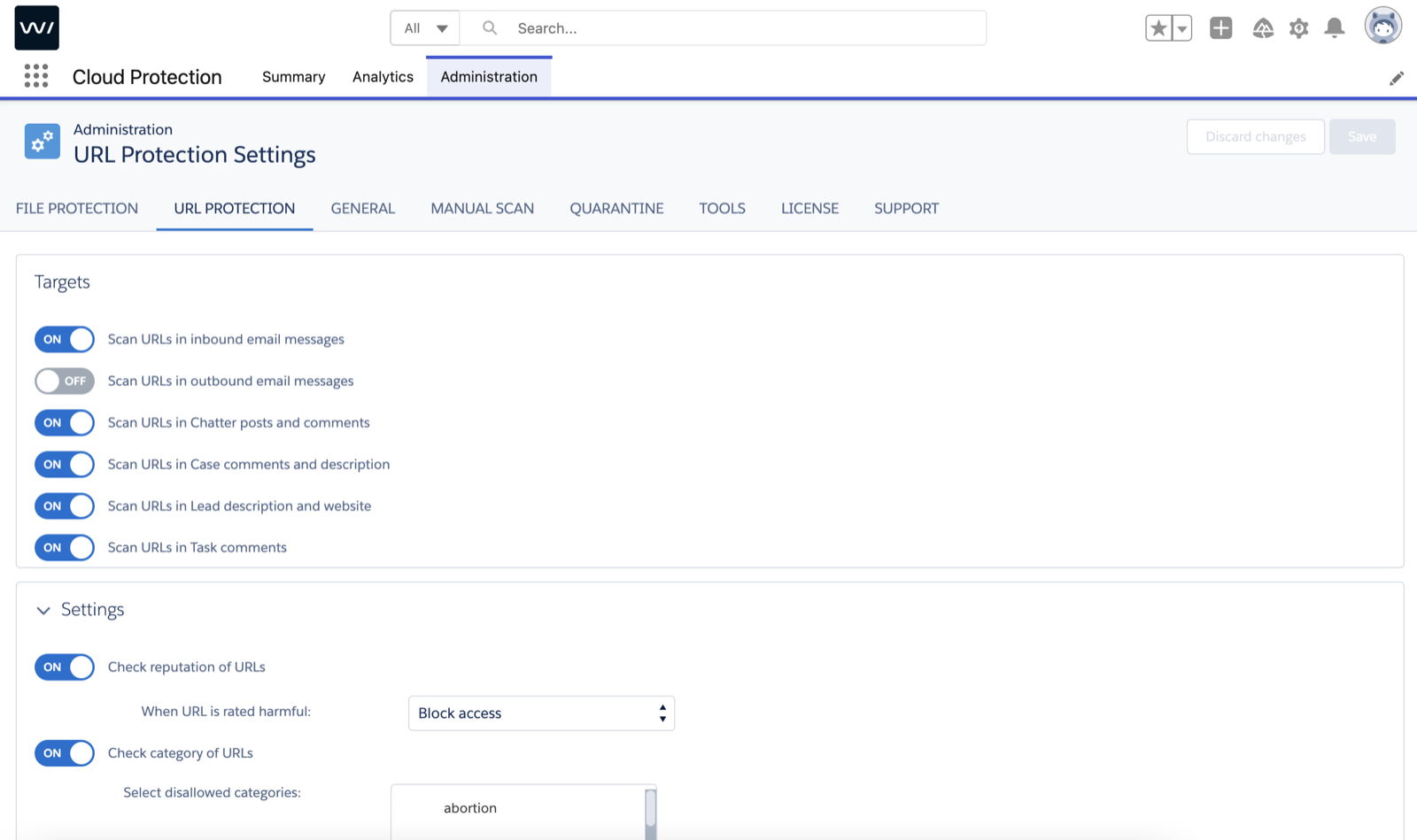
URL Protection tab
Here you can see and configure where we’re able to scan URLs for harmful content.
You can also do things like block certain websites if they have a poor reputation or if their content relates to certain disallowed categories.
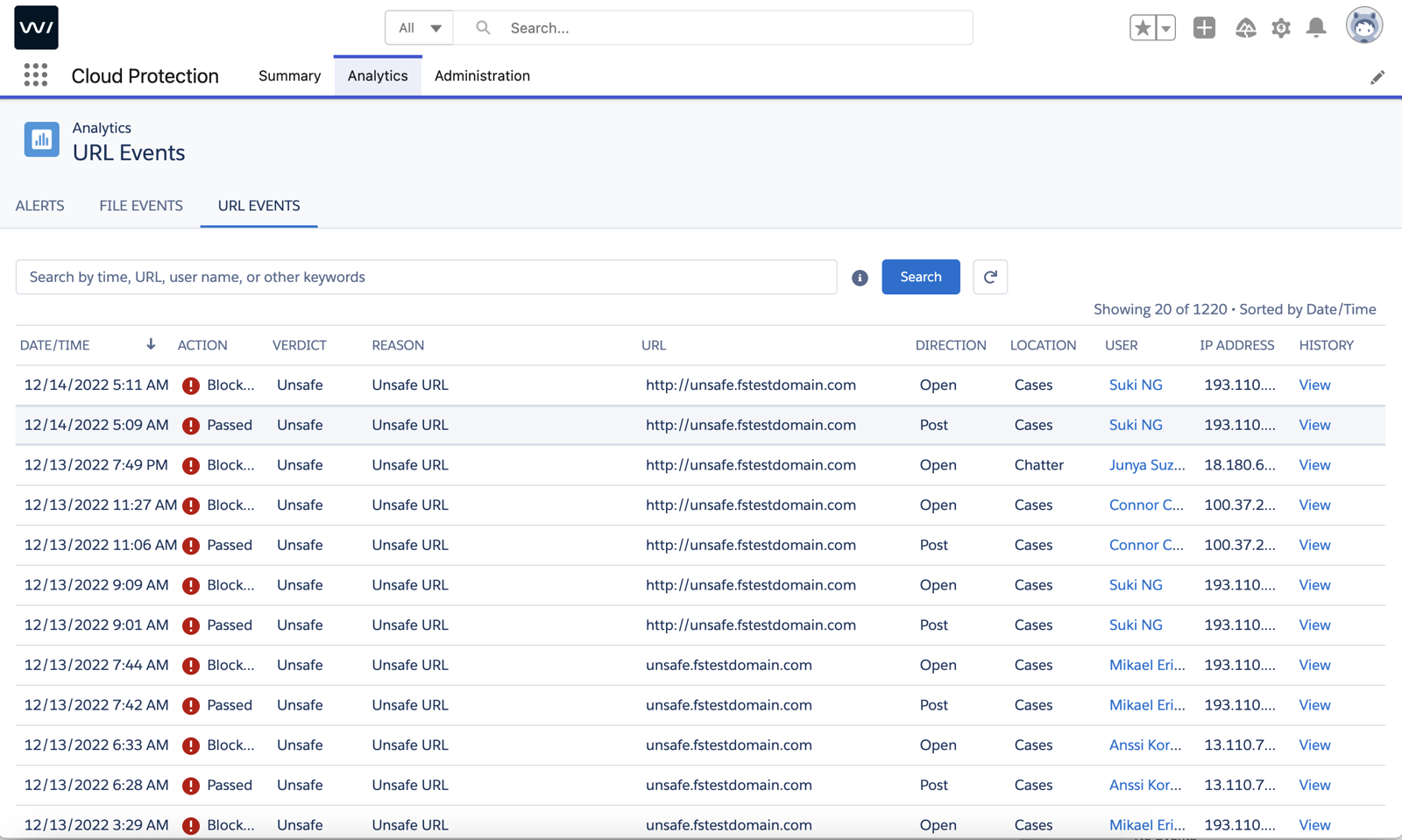
Analytics tab → URL Events
Here we can see all actions around different URLs, who posted them, who tried to click on them, the IP address etc.
Attack Simulator
A tool to simulate different attacks. A username and password are needed to access the tool.
Sales materials
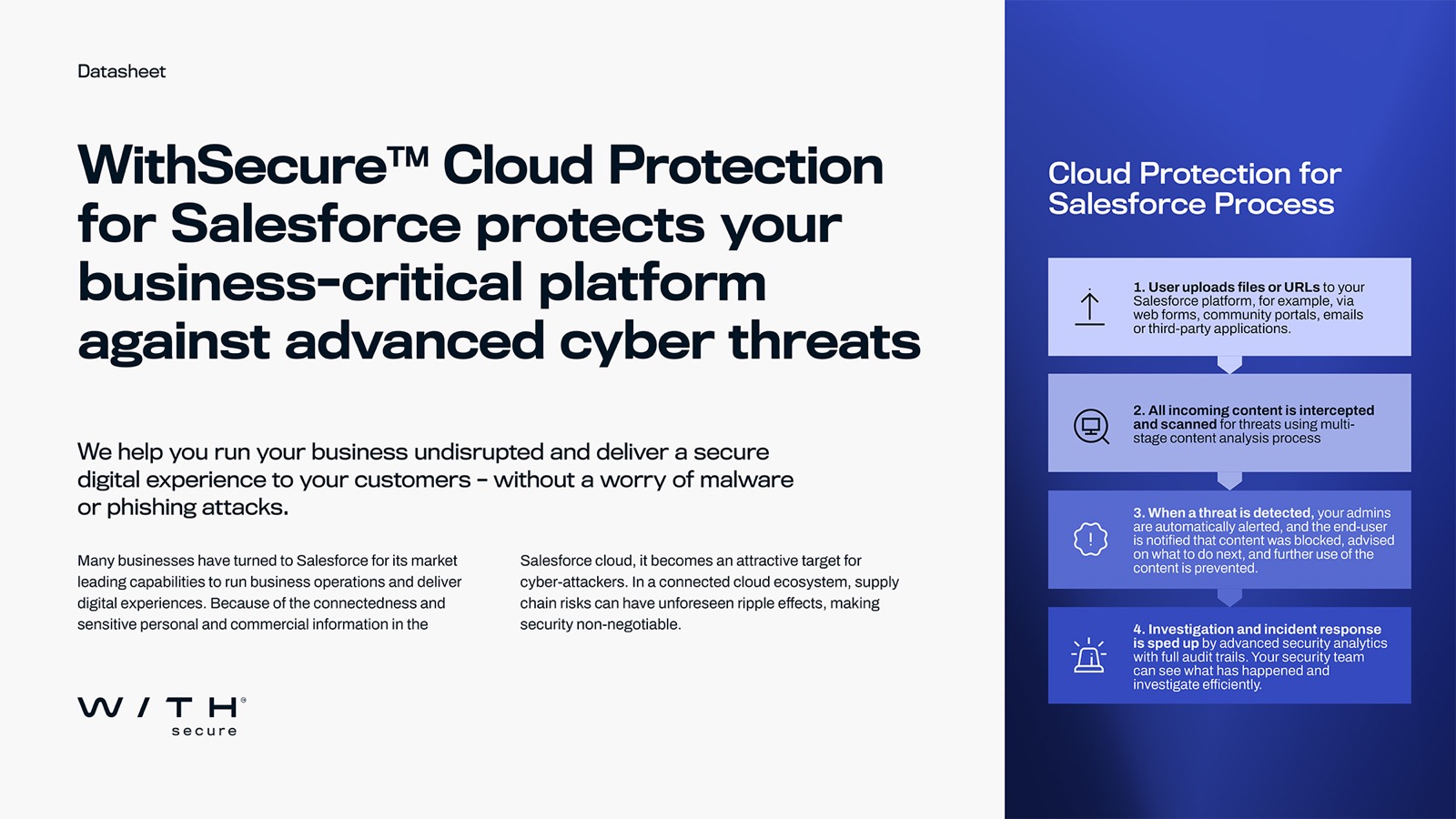
Datasheet
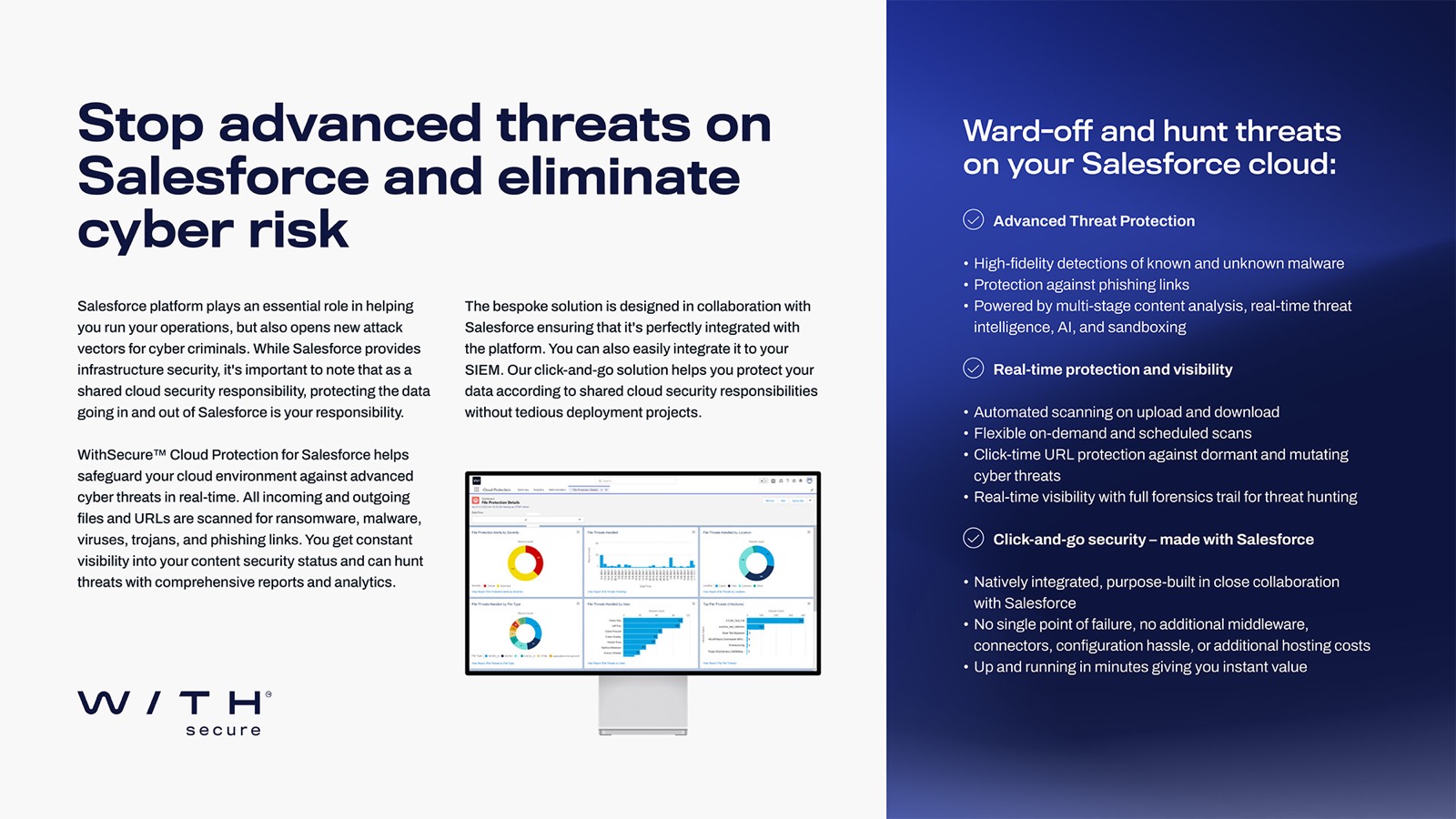
Two pager for CISOs
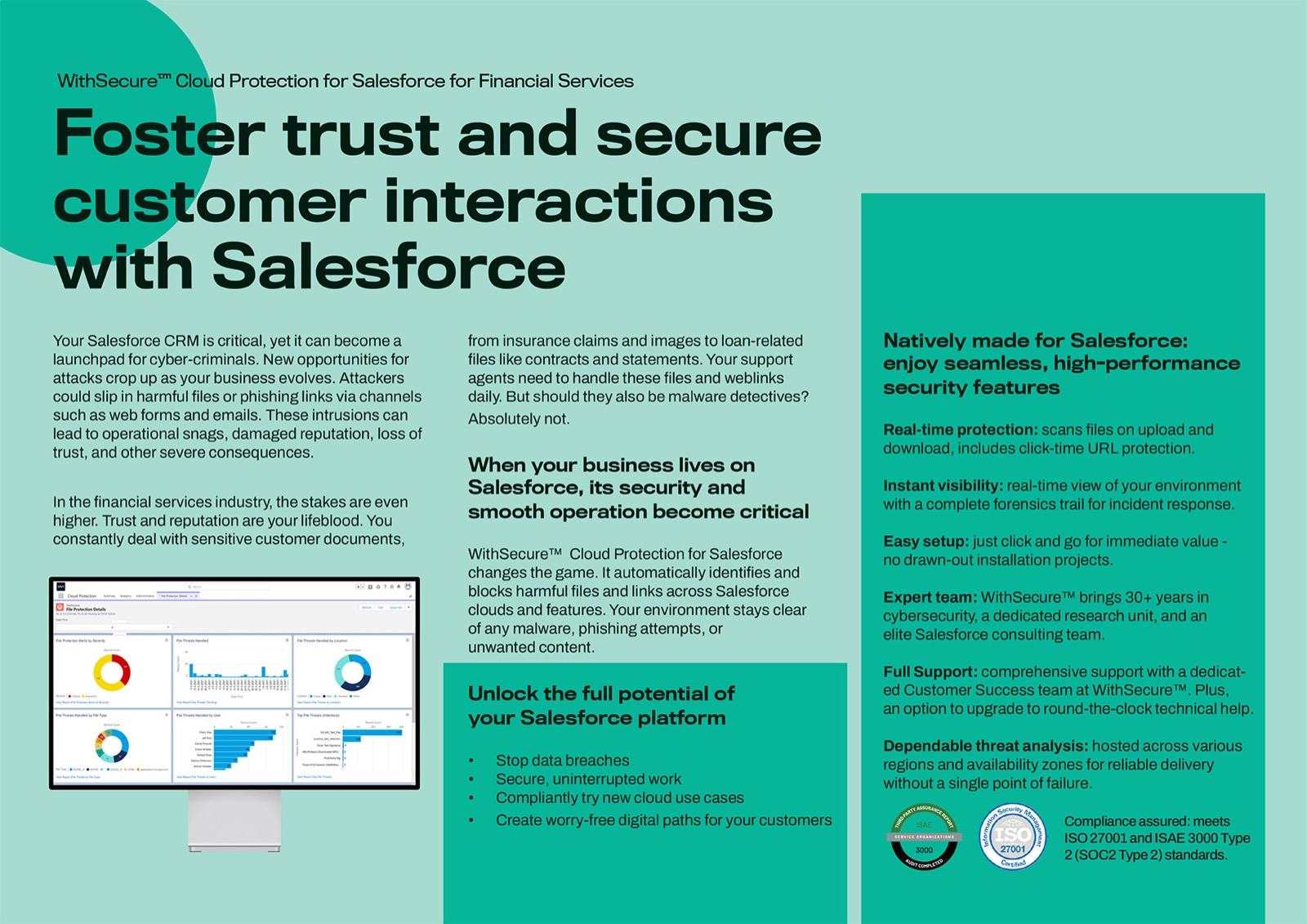
One pager for the financial sector
Cloud Protection for Salesforce overview deck
The overview deck is maintained in Google Slides and can be presented as-is or adapted to a customer meeting.
Content Risk Assessment Tool
Interested in finding out the overall risk level of your Salesforce environment regarding content-based risks?
Take a short risk assessment and get a report about your risk level – with practical recommendations to protect your content on the Salesforce platform.
Natively made for Salesforce: enjoy seamless, high-performance security features
WithSecure™ Cloud Protection for Salesforce stops advanced cyber threats. You can run your digital business undisrupted – free from malware and phishing links. Get constant clarity of your content security status and see what is happening in real time. The bespoke solution is designed with Salesforce, and deployed in minutes.
Real-time protection: scans files on upload and download, includes click-time URL protection.
Instant visibility: real-time view of your environment with a complete forensics trail for incident response.
Easy setup: just click and go for immediate value – no drawn-out installation projects.
Expert team: WithSecure™ brings 30+ years in cybersecurity, a dedicated research unit, and an elite Salesforce consulting team.
Full support: comprehensive support with a dedicated Customer Success team at WithSecure™. Plus, an option to upgrade to round-the-clock technical help.
Dependable threat analysis: hosted across various regions and availability zones for reliable delivery without a single point of failure.
Compliance assured: meets ISO 27001 and ISAE 3000 Type 2 (SOC2 Type 2) standards.
Want to talk in more detail?
Send an email to us, and we’ll be in touch as soon as possible.