


Key Takeaways
- Salesforce now scans some files natively, but it skips attachments, files over 100 MB, and links.
- Cloud Protection for Salesforce scans every file, attachment, and URL in real time, at upload and again at download.
- With the Security Center integration, scan results and threat trends show up on the dashboard your team already uses.
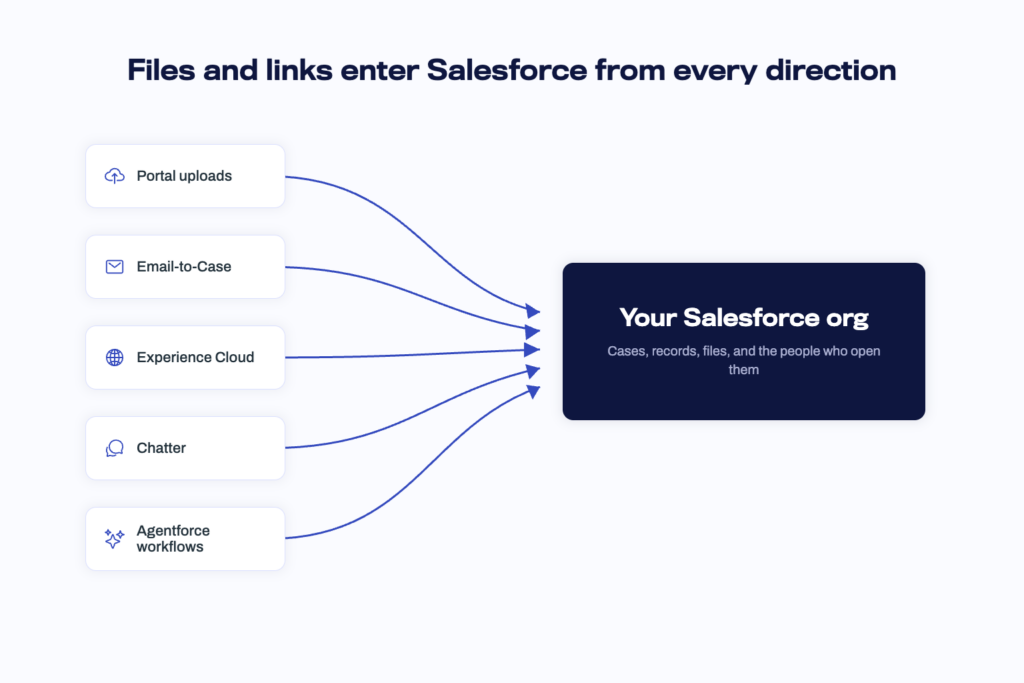
Files flow into Salesforce constantly, arriving as documents customers upload through portals, attachments on support cases, emails coming in through Email to Case, and files partners share through Experience Cloud. Any one of them can carry malware, and your service agents open them all day long.
So how do you scan all of it? The short answer: since Salesforce scans some files natively since the Spring 26 release, but complete coverage of files, attachments, and links takes a dedicated scanning app such as Cloud Protection for Salesforce, which can also feed its results into Salesforce Security Center so you can monitor threats over time.
This guide walks through the details: what native file scanning protects, where it stops, and how to close the gaps.
What Salesforce does and does NOT scan by default
Based on Salesforce’s own documentation, the native File Scan works like this:
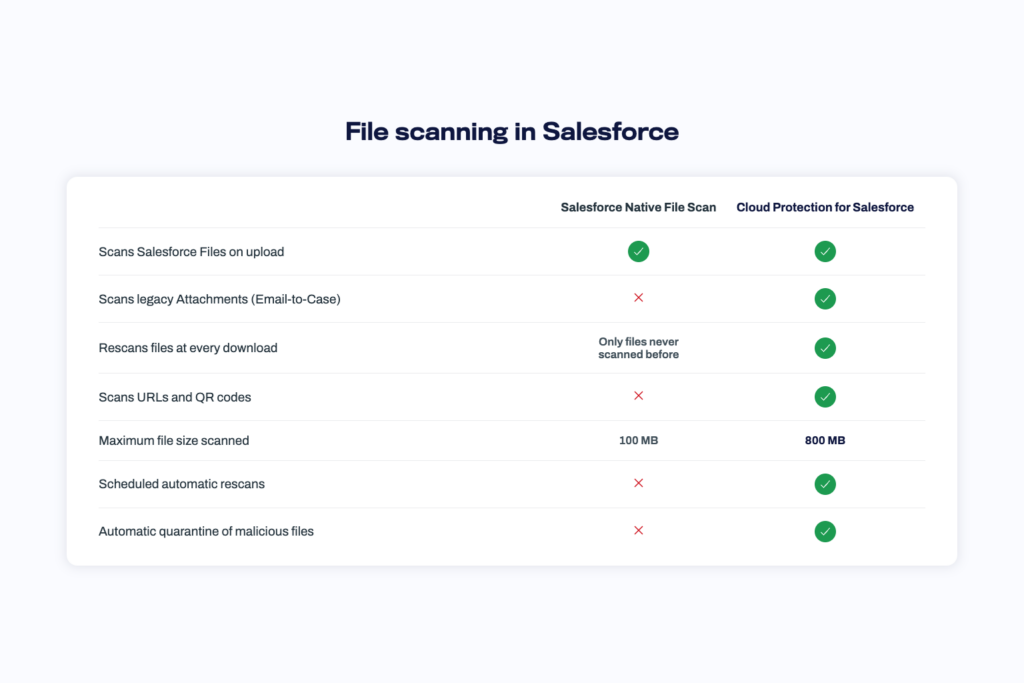
- It scans Salesforce Files at upload and blocks files identified as malicious.
- It covers Salesforce Files only. Legacy Attachments are out of scope. This matters because Email to Case creates attachments, which means one of the most common ways files enter your org from the outside is not covered.
- Files over 100 MB are not scanned and not blocked.
- It flags only files with a high probability of being malicious.
- Files uploaded before the feature was enabled are checked only when someone downloads them.
There is also no scanning of URLs inside your records, and no reporting layer where you can see what was scanned, what was caught, and how threat activity develops over time.
Salesforce is transparent about this. Its documentation points customers with more stringent scanning requirements toward security partners on AgentExchange. In other words, native scanning is the floor, not the ceiling. For a full feature by feature breakdown, see our detailed comparison of Salesforce file scanning and Cloud Protection for Salesforce.
How to scan every file and attachment in real time
Cloud Protection for Salesforce is built for exactly the gaps listed above. Here is what changes when it is running in your org:
Every file and every attachment is scanned. Salesforce Files, Legacy Attachments, Content from Email to Case, portal uploads, Experience Cloud, Chatter, and content flowing through Agentforce workflows. No file type or entry point is left out.
Scanning happens at upload and again at download. A file that was clean yesterday can be identified as malware today, because threat intelligence keeps improving. The native scan checks a file once, while Cloud Protection for Salesforce rechecks every download, catching these late discoveries before a user opens the file.
Files already in your org get scanned too. You can run a manual scan on demand or set up a scheduled scan that bulk checks your files outside business hours.
Malicious files are handled automatically. Depending on your policy, harmful content is blocked or quarantined at the moment it is found, with alerts to your admins. No manual review queue.
Links get the same treatment. URLs are checked against live threat intelligence wherever they appear: in cases, Chatter posts, emails, leads, tasks, and other standard and custom records. QR codes in files and images are extracted and their destinations scanned too, because phishing links do not always sit in plain sight. They hide inside documents and behind QR codes.
Getting up and running is fast. The app installs from AgentExchange, setup takes little time, and no changes to your Salesforce configuration are needed. Scanning starts in real time as files and links enter your org.
How to monitor it all in Security Center
Scanning catches threats as they arrive. Without visibility into that activity, you have no way to know it is working, spot a pattern, or prove it to anyone who asks.
If you use Security Center, Salesforce’s tool for monitoring security across your orgs from one dashboard, your threat data from Cloud Protection for Salesforce can appear right there. File scan verdicts, URL scan results, alerts, and identity breach records show up as custom metrics with trend charts.
That turns individual events into patterns you can act on. A spike in blocked files after launching a new portal. Malicious links clustering in cases from one region. And when an auditor or executive asks what protects your Salesforce, the evidence is already on the dashboard they trust, with up to six months of history.
We wrote a full walkthrough of the integration, including the dashboard views and the three step setup: How to integrate Cloud Protection for Salesforce with Salesforce Security Center.
If you do not use Security Center, the same data is available in the analytics views inside Cloud Protection for Salesforce, covering scan activity, detections, and trends. The Security Center integration simply brings that data into one place alongside your other Salesforce security signals.
Scan everything, see everything
Native file scanning is a good start, and it is by default for a reason. But email attachments, large files, and links still pass through unchecked, and there is no way to see how threats develop over time. That is what Cloud Protection for Salesforce is for. It closes the scanning gaps, and through the Security Center, it gives you the monitoring layer. With both in place, every file and link entering your org gets checked, and you can monitor it.
For the full field by field configuration, including the recommended display fields for each metric, see the Security Center integration guide.
Getting started
Already a customer? The Security Center integration is available from release 3.3 onwards. Update to the latest release and follow the setup guide to register the custom metrics. No configuration changes are needed in Cloud Protection for Salesforce itself.
Not a customer yet? Two ways to start. A free Salesforce risk assessment shows you what is currently entering your org unscanned, with real numbers from your own environment. Or book a demo and we will walk you through file scanning, URL protection, and the Security Center integration live.
Frequently asked questions
Does Salesforce scan files for viruses?
Partially. Since the Spring 26 release, Salesforce natively scans uploaded Salesforce Files and blocks those identified as malicious. The native scan does not cover legacy Attachments, skips files over 100 MB, and flags only high probability threats. Complete coverage requires a dedicated scanning solution.
Is there a file size limit for Salesforce malware scanning?
The native Salesforce File Scan does not scan or block files over 100 MB. Cloud Protection for Salesforce scans files up to 800 MB.
Can I scan files already stored in Salesforce?
Cloud Protection for Salesforce can scan your existing files on demand with a manual scan, or in bulk with a scheduled scan that runs outside business hours.
Can I see scan results in Salesforce Security Center?
Yes. Cloud Protection for Salesforce surfaces file scan logs, URL scan logs, alerts, and breach logs in Security Center as custom metrics with trend charts.