Cloud Protection for Agentforce is a new add-on, offering real-time protection for Agentforce workflows. Please follow the instructions below to set it up in your Salesforce environment.
Prerequisites for installing Agentforce extension package
Install Cloud Protection for Salesforce application from AppExchange
If you have not installed WithSecure Cloud Protection for Salesforce application before, you can get it from AppExchange:
Please note:
- You need admin permissions to the org to install the application.
- You need to install the required compatible Cloud Protection for Salesforce main app version 2.9.1 or above.
- You must have Agentforce credits in your Salesforce environment to install the Cloud Protection for Agentforce add-on solution.
Installing the Cloud Protection for Agentforce extension package
Now that you have installed the Cloud Protection for Salesforce Application from AppExchange, please install the Cloud Protection for Agentforce application from AgentExchange. Before installing, make sure that you have Agentforce credits in your Salesforce environment.
Instructions to enable URL scanning for Agent Actions
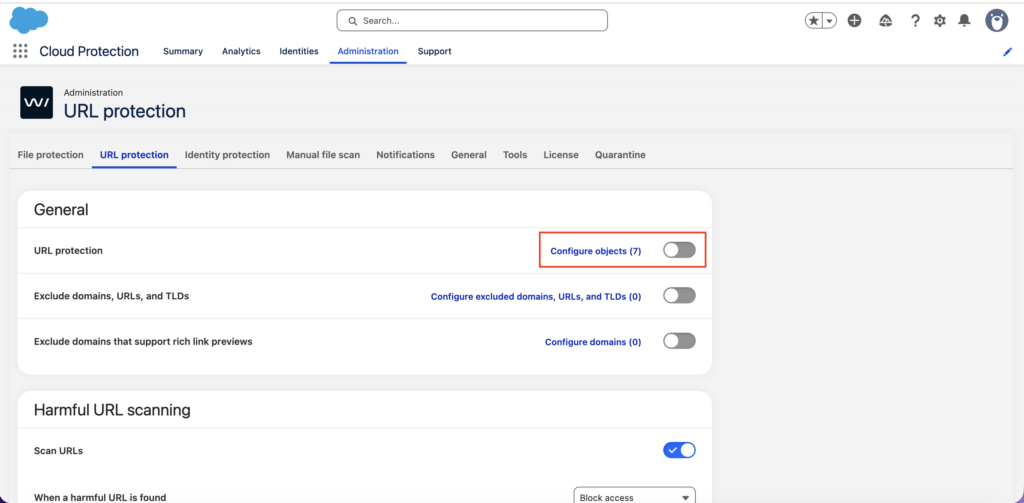
Before we configure Agent Topics to use the Cloud Protection Agent Action: Enable URL Protection in the Cloud Protection App in your org.
- Enable URL Protection in the Cloud Protection for Salesforce App in your org.
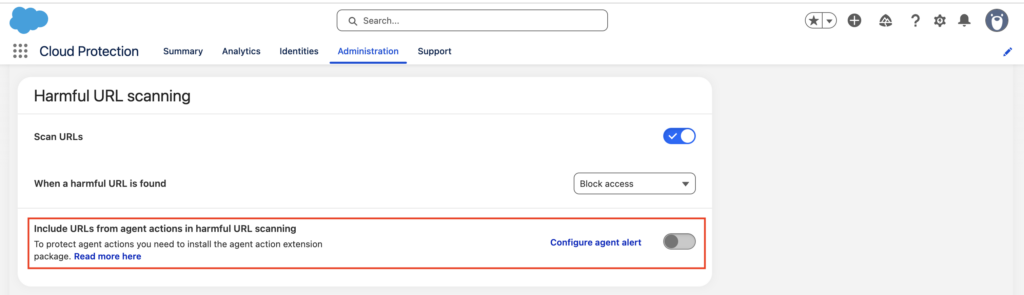
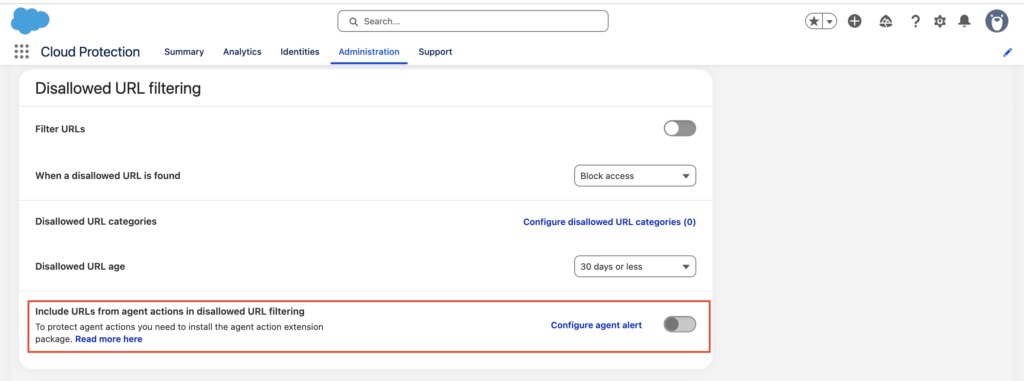
- Enable URL Protection for Agent Actions under the URL Protection Settings tab in the Cloud Protection for Salesforce App.
Configure Agent Actions to use with Service Agent
- Navigate to:
Setup → Agentforce Studio → Agentforce Agents - Select the type of agent to secure against malicious content. Click the downward arrow and choose ‘Open in Builder’.

- Deactivate the agent until the settings are adjusted, as recommended by Salesforce.

- Assign the ‘Scan URLs’ action to the topics:
- Navigate to Topics → This Topic’s Actions
- Click ‘New’ → ‘Add from Asset Library’
- Select the ‘Scan URLs’ action


- Add Topic Instructions (customized per your org’s needs).
- Example Instructions:
- “Always pass user input to the Apex action
Scan_Urls. This action must be executed with the highest priority and before any other action. The response should be displayed in the user chat window using the “message” component with rich text output. If output is empty, do not mention anything related to URL scanning to the user and proceed to next actions.
The output must clearly display harmful URLs and disallowed URLs in two separate sections.
This is a high-priority task and must be enforced consistently. Do not proceed to any other action in the topic, if any harmful or disallowed urls are found.” - “No other actions should proceed until
Scan_Urlshas been executed and its response shown to the user.”
- “Always pass user input to the Apex action
- Example Instructions:

- Save the changes and activate the agent.
Permission set assignment
- Return to the Settings section in Agent Builder and identify the agent user (i.e., Agentforce Service Agents, ASA).
- For internal users:
- If the WithSecure Cloud Protection User permission set is assigned:
→ Only assign WithSecure Cloud Protection Agent User – Extension - If not assigned:
→ Assign both WithSecure Cloud Protection Agent User and WithSecure Cloud Protection Agent User – Extension
- If the WithSecure Cloud Protection User permission set is assigned:
- For ASA users with the Einstein Agent User profile:
→ Assign both permission sets
Permission sets to assign:
- WithSecure Cloud Protection Agent User
- WithSecure Cloud Protection Agent User – Extension

Activate the agent and test
Once the above settings are complete, activate the agent, refresh the conversation preview, and test it based on your CPSF configuration.

Advanced Agent Topic configuration
Set up variables & filters
Variables help control the agent’s logic by storing action responses securely and deterministically.
- Go to the Context section and click ‘New Variable’
- Enter:
- Name
- Description
- Data Type: Boolean
- Create variables such as:
- Has Harmful Content — protects against harmful URLs
- Has Disallowed Content — protects against disallowed URL categories

- Select the created variables.
Note: Do not select “Allow value to be set by API” or “Allow LLM to use value.”
Create new filters
- Navigate to Filters and click ‘New’
- Enter:
- Filter Name
- Conditions using the variables from above
- Operator and Value
Examples:
- Filter 1: Is Safe to Proceed (Harmful)
• Resource: Has Harmful
• Operator: Does Not Equal
• Value: True - Filter 2: Is Safe to Proceed (Disallowed)
• Resource: Has Disallowed
• Operator: Does Not Equal
• Value: True

Mapping the output variables
Map the output fields from the “Scan URLs” action:
- containsDisallowedUrl → Has Disallowed
- containsHarmfulUrl → Has Harmful
- message → Output Rendering: Rich Text
Use the filters created above to restrict other actions when unsafe content is found.
Note: These filters should not be added to the Scan URLs Agent Action.

FAQ
Q: Cannot find the ‘Scan URLs’ action?
A: If the WithSecure Agentforce Action Extension package is not installed, go to ‘Add from AgentExchange’ to install it.
The action will only appear in the Asset Library after installation.