Monitor risky permissions with Identity Protection
Identity Protection includes risky user permissions visibility, a feature that surfaces Salesforce users who have been assigned system permissions that carry significant security risk.
Certain Salesforce system permissions grant broad, often org-wide access. When assigned to users who do not actively need them, or to users whose credentials have been exposed in a breach, these permissions become a potential attack path. Identity Protection evaluates user permission assignments and flags those that warrant attention, helping administrators enforce the principle of least privilege before a problem occurs.
Risky user permissions are built into Cloud Protection for Salesforce and requires no separate license. It requires active WithSecure Cloud Protection for Salesforce user-based licenses.
Before you start
You can access Identity Protection under Administration → Identity protection → Identities at Risk → Risky permissions. By default, all identity protection settings are off. Complete the pre-checks mentioned on this page under Before you start to use this feature.
To learn how you can schedule a breach scan please read the Schedule a breach scan instructions here.
How risky user permissions works
Identity Protection evaluates each monitored user’s assigned permission sets and flags those that include system permissions that are considered high risk. Flagged permissions are displayed per user under Risky permissions and on the Overview tab.
When users change roles or leave the company, their permissions often go unchecked. The Risky permissions tab shows which risky permissions a user holds, and which permission sets and permission set groups those permissions belong to, giving administrators the full picture before taking action.
The Overview tab surfaces Risky permissions alongside other risk signals, including email breach exposure and missing Cloud Protection for Salesforce licenses. A user flagged for multiple reasons, for example a breached email address combined with a high-risk permission, represents a higher overall risk than any single signal alone.
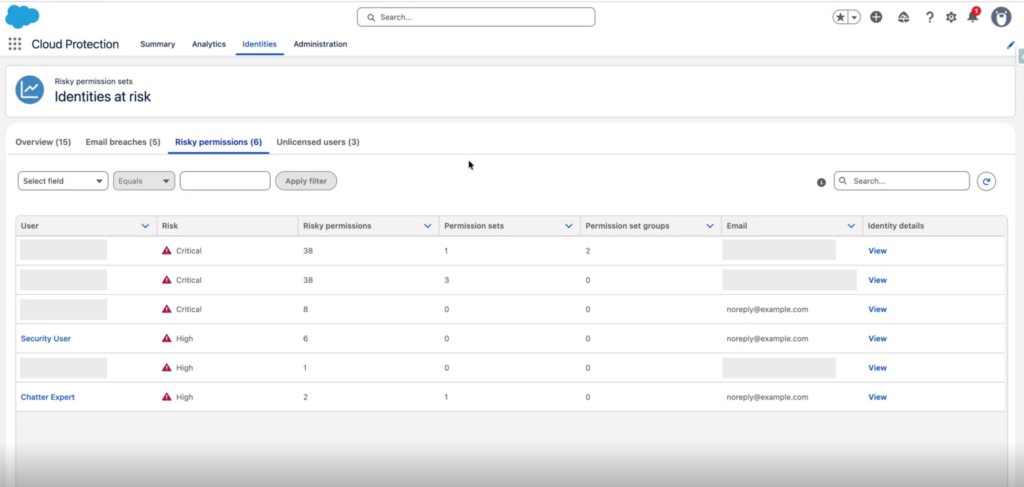
Fig 1: Monitor over-privileged users with one view
Permissions flagged as risky
The following system permissions are flagged when assigned to a user:
| Permission | Risk reason |
| Modify All Data | Allows reading, editing, and deleting all records in the org, regardless of sharing settings |
| View All Data | Allows read access to all records in the org, regardless of sharing settings |
| Assign Permission Sets | Allows the user to grant any permission set, including admin-level access, to any user |
| Manage Users | Allows creating and editing all user accounts, including resetting passwords |
| Exempt from Transaction Security | Prevents Transaction Security policies from applying to this user’s actions |
| Password Never Expires | Disables password expiry, increasing the window of exposure if credentials are leaked |
View risky permissions for a user
- Go to Identities → Risky permissions
- Under Risky permissions, review the list of users with flagged permissions and their risk descriptions.
- Click View to see further details about a user, including files and URLs scanned, permission details, connected apps and when they were last used, and login history.
- From the View panel, you can also take immediate action:
- Freeze the user in the event of a breach or
- Reset their password to force re-authentication.
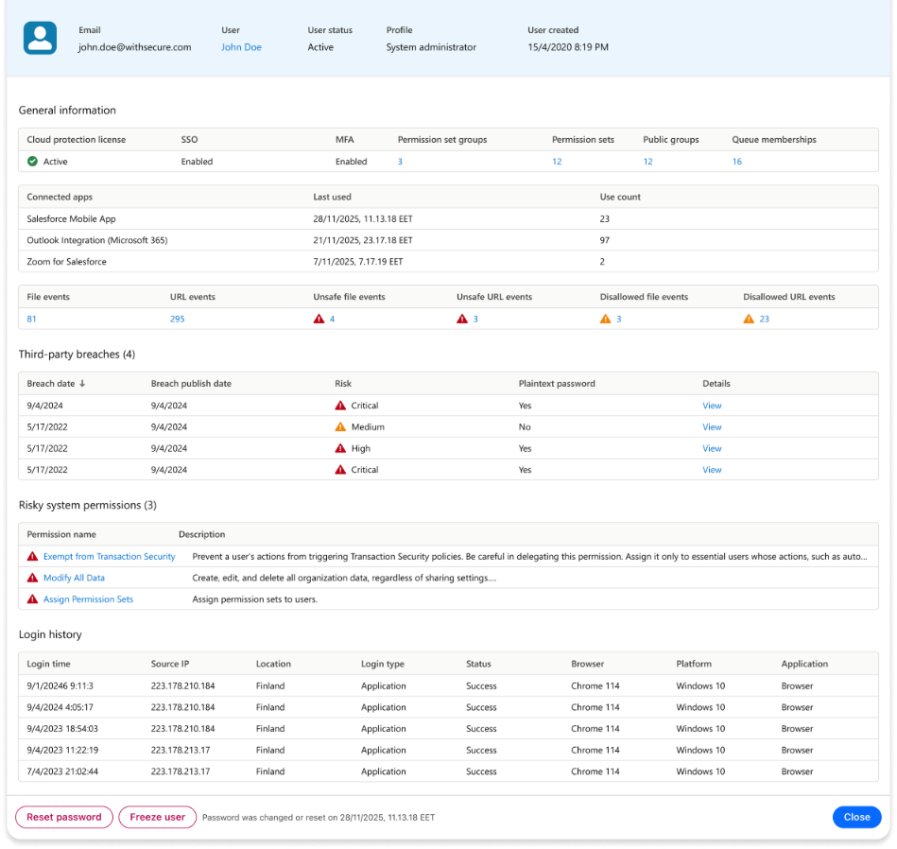
Fig 2: Detailed user overview
Note: Users with risky permissions are flagged in both the Overview & Risky permissions view. Click View to open the user’s detail panel.
Frequently asked questions
What is identity protection in WithSecure Cloud Protection for Salesforce?
Identity Protection is a feature in WithSecure Cloud Protection for Salesforce that helps administrators identify and act on user-level risk across their Salesforce org. It covers three key areas:
Credential breach monitoring — Identity Protection detects Salesforce user credentials exposed in third-party breaches, enabling administrators to act before attackers can exploit compromised accounts.
Risky permissions — Identity Protection evaluates the permission sets assigned to monitored users and flags those that contain high-risk system permissions, giving administrators full visibility into who holds excessive access.
Email notifications — Administrators receive email alerts when new breached user data is detected, ensuring they are informed as soon as a risk is identified.
Which Salesforce users does identity protection monitor?
Identity protection in WithSecure Cloud Protection for Salesforce covers both internal and external user types:
Internal Salesforce users: Employees, administrators, and system accounts. Detect compromised credentials early to prevent unauthorized access or privilege escalation.
Community and partner users: Experience Cloud and partner logins often fall outside corporate security controls. WithSecure Cloud Protection for Salesforce uniquely monitors these accounts at enterprise scale — reducing the risk of impersonation, supply-chain abuse, and data exposure.
Which permissions are considered risky?
Permissions are flagged based on their potential for misuse if the account is compromised or the permission is no longer needed. The primary criteria are: org-wide data access, the ability to escalate privileges, the ability to modify other users’ access, and settings that reduce standard security controls such as password expiry.
Does Identity Protection automatically remove permissions?
No. Identity Protection surfaces the risk and provides the tools to act, but all changes to permission sets are made by the administrator. This ensures that no access is removed without deliberate review.
Can I see which permission set is granting the risky permission?
Yes. The user detail panel shows the flagged permissions and links directly to the relevant permission set in Salesforce, so you can identify the source and decide whether to modify or remove it.
Does a risky permission automatically make a user high risk?
Not necessarily. Risky permissions are one of three signals evaluated in the Identities at Risk overview, alongside email breach exposure and missing Cloud Protection licenses. A user flagged for a risky permission alone may represent a lower overall risk than a user flagged for multiple signals combined.
To help administrators assess the full picture, the Overview tab surfaces all risk signals for each user in one place. This makes it easier to prioritize action based on overall risk rather than any single signal in isolation. As a rule of thumb, administrators should always enforce the principle of least privilege.
What is the principle of least privilege?
Least privilege means that each user should have access only to the data and functionality they need to do their job, and no more. Enforcing least privilege reduces the potential damage if an account is compromised, because the attacker’s access is limited to what that user legitimately needs.
Do I need to enable the connected app for identity protection to work?
Yes. The connected app must be active to use the identity protection feature.
Is identity protection included in my existing license?
Yes. Identity protection is part of the WithSecure Cloud Protection for Salesforce user-based license and doesn’t require an additional license or add-on. However, it is not currently supported by volume-based licenses.
Does Identity Protection process personal data?
Some personal data may be processed in the Identity Protection feature, namely the email address and related breach data. Such personal data is stored in encrypted form and processed in accordance with the Data Processing Agreement. Please note that the data in the Identity Protection feature may be processed outside your normal data processing data region.
For more information on privacy in WithSecure Cloud Protection for Salesforce, please see the WithSecure Cloud Protection for Salesforce Privacy Policy.